Once you have items in your catalog, adding them to invoices is quick. When you add a line item to an invoice, you can search your catalog by name and the details fill in automatically.
- 1
Start creating or editing an invoice
Open a new or existing invoice and scroll to the line items section.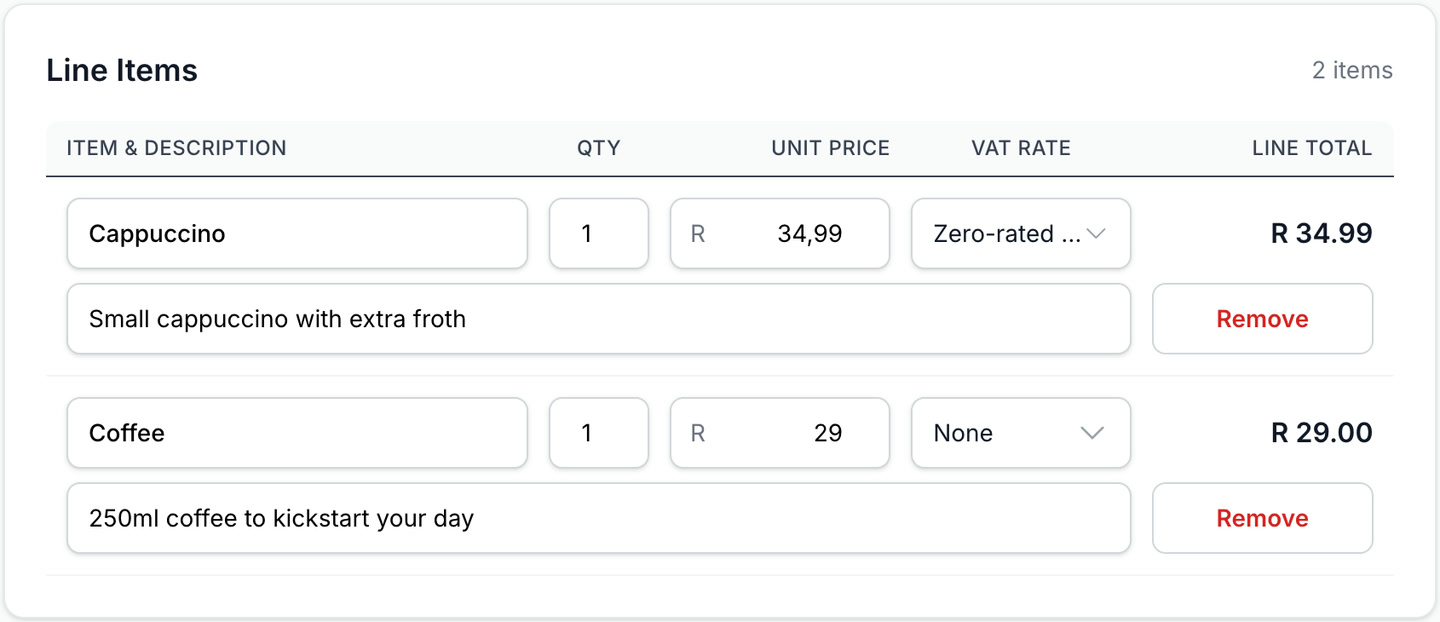
- 2
Click "Add Line Item"
Click "Add Line Item" to add a new row.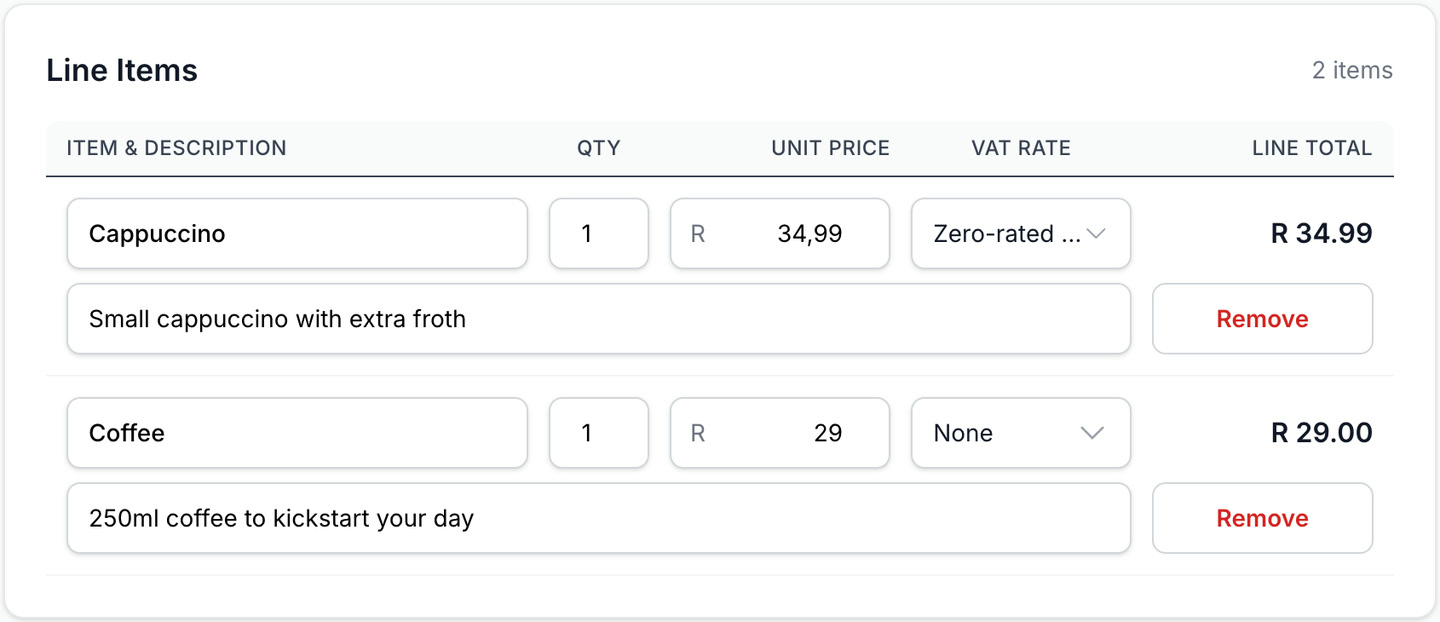
- 3
Search for an item
In the Description field, start typing the name of the item. A dropdown will appear with matching items from your catalog. Click the item to select it.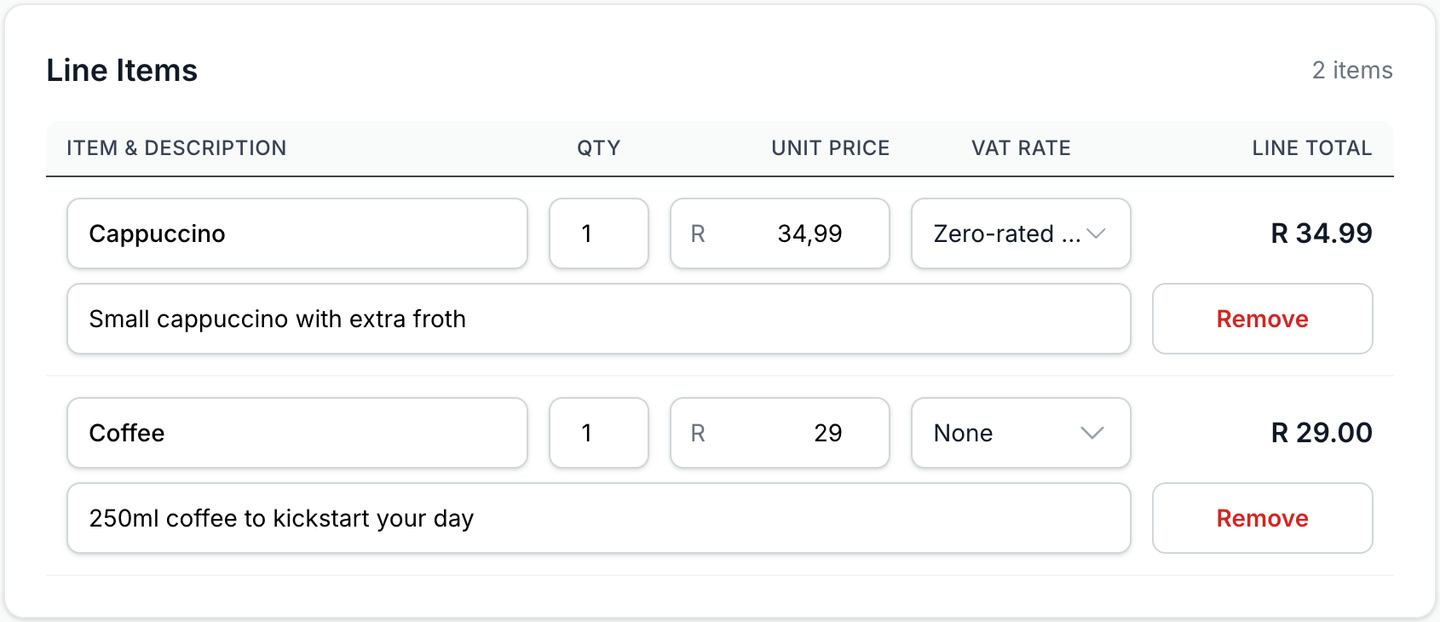
- 4
The details fill in automatically
The description and price are filled in from your catalog. You can adjust the quantity, and if needed, change the unit price for this specific invoice.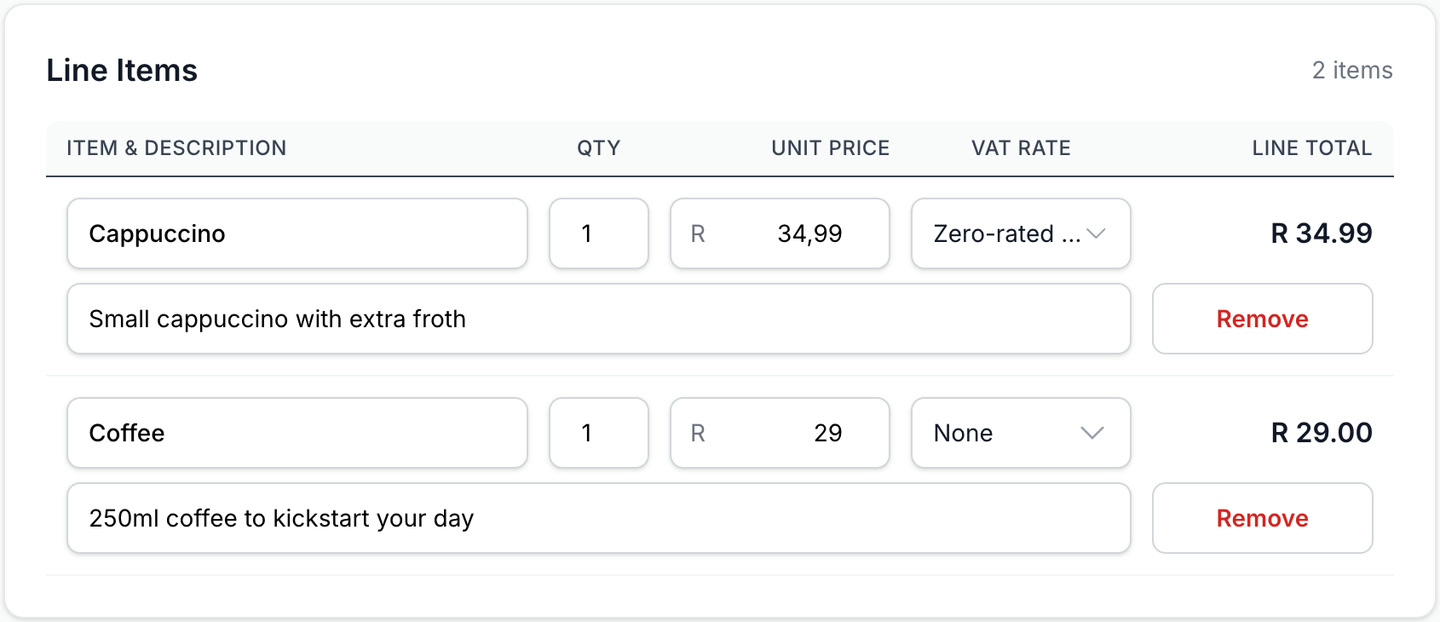
Note
You can still type line items manually — the catalog is optional. If you type a description that doesn't match any item, it'll just be a plain text line item.