Once you've created an invoice, you can send it to your client by email or WhatsApp. Your client will receive a link where they can view the invoice and pay online.
Sending by email
- 1
Open the invoice
Go to Invoices and click on the invoice you want to send.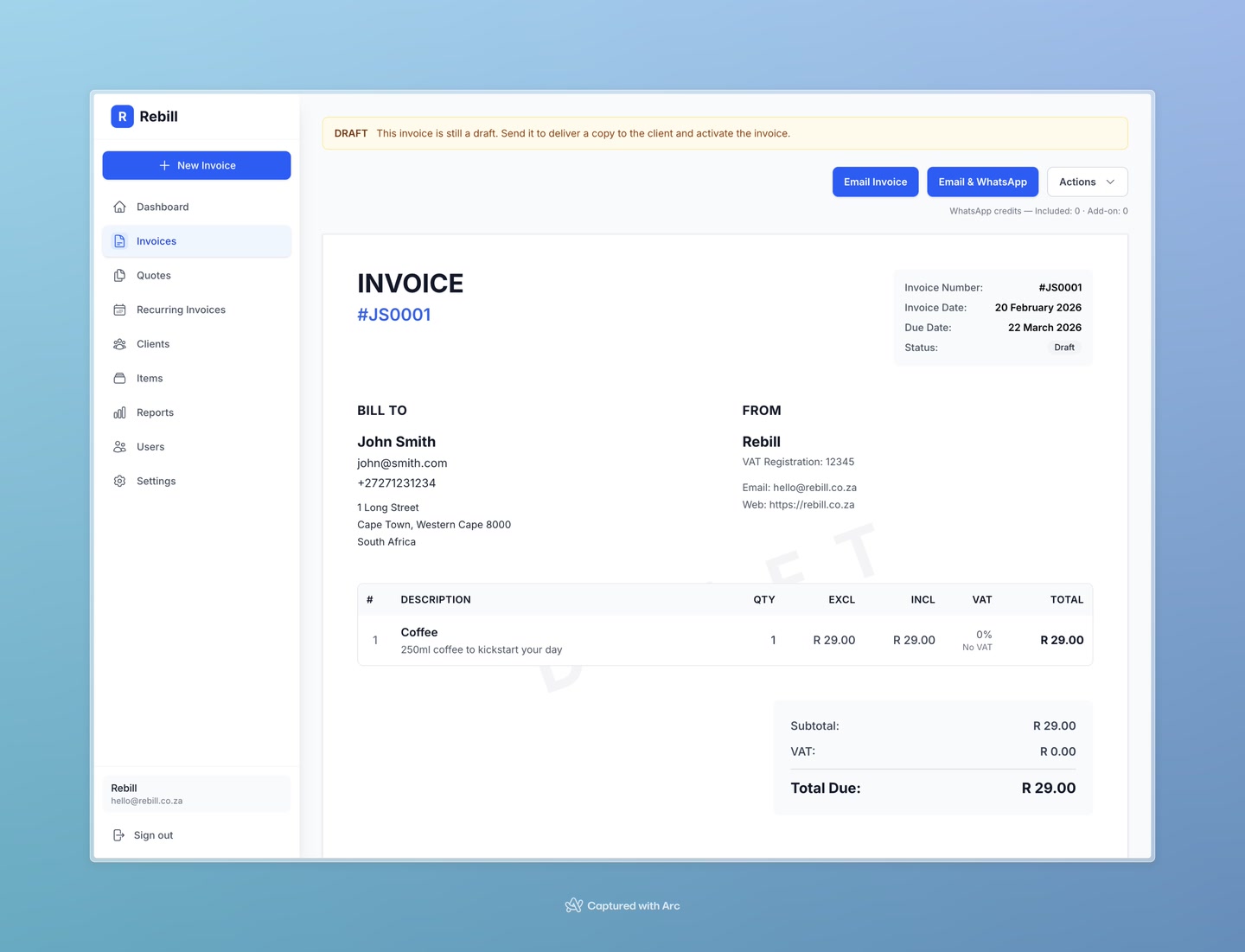
- 2
Click "Email Invoice"
Click the blue "Email Invoice" button at the top of the page.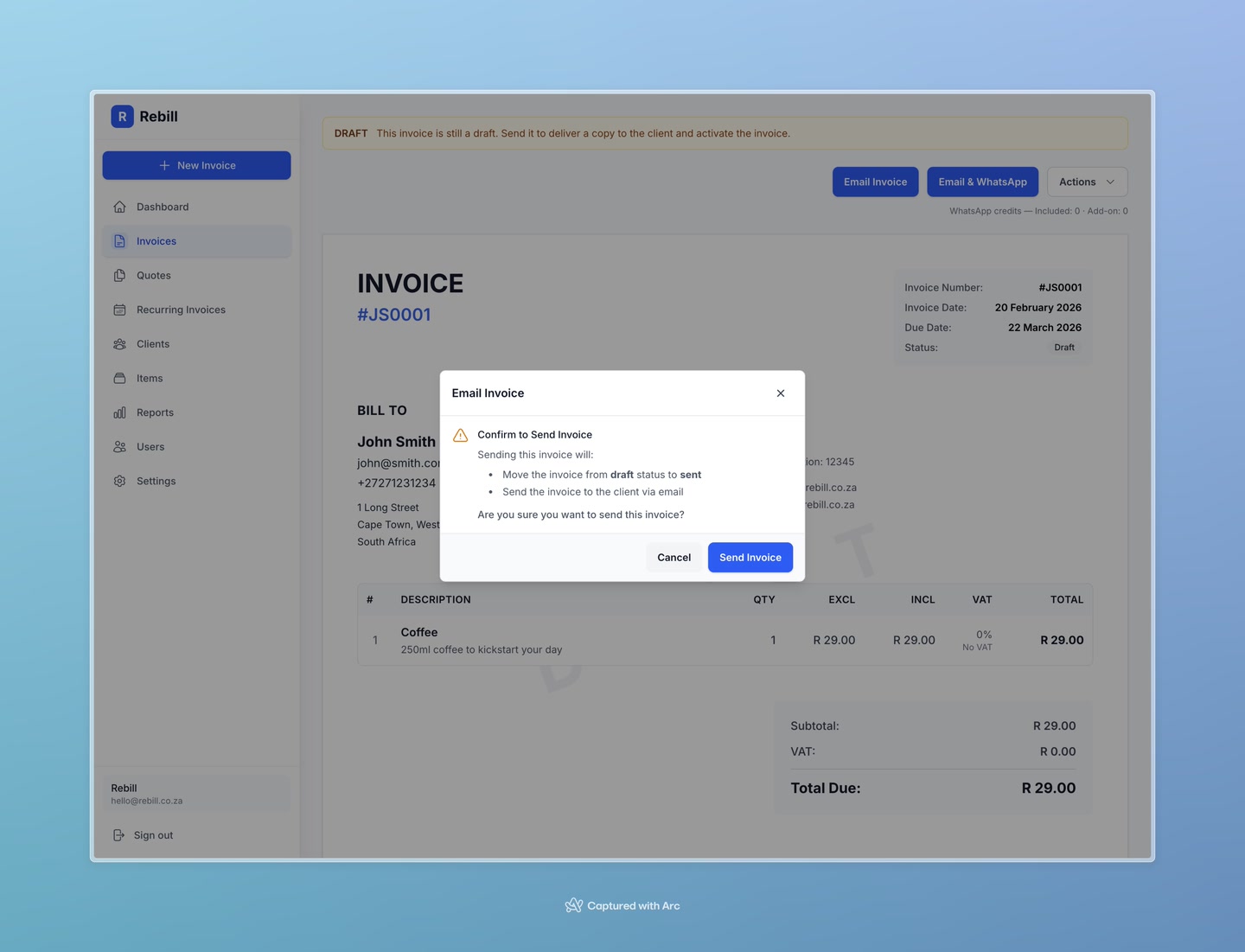
- 3
Confirm and send
A confirmation window will appear showing which email address the invoice will be sent to. Click "Send Invoice" to confirm.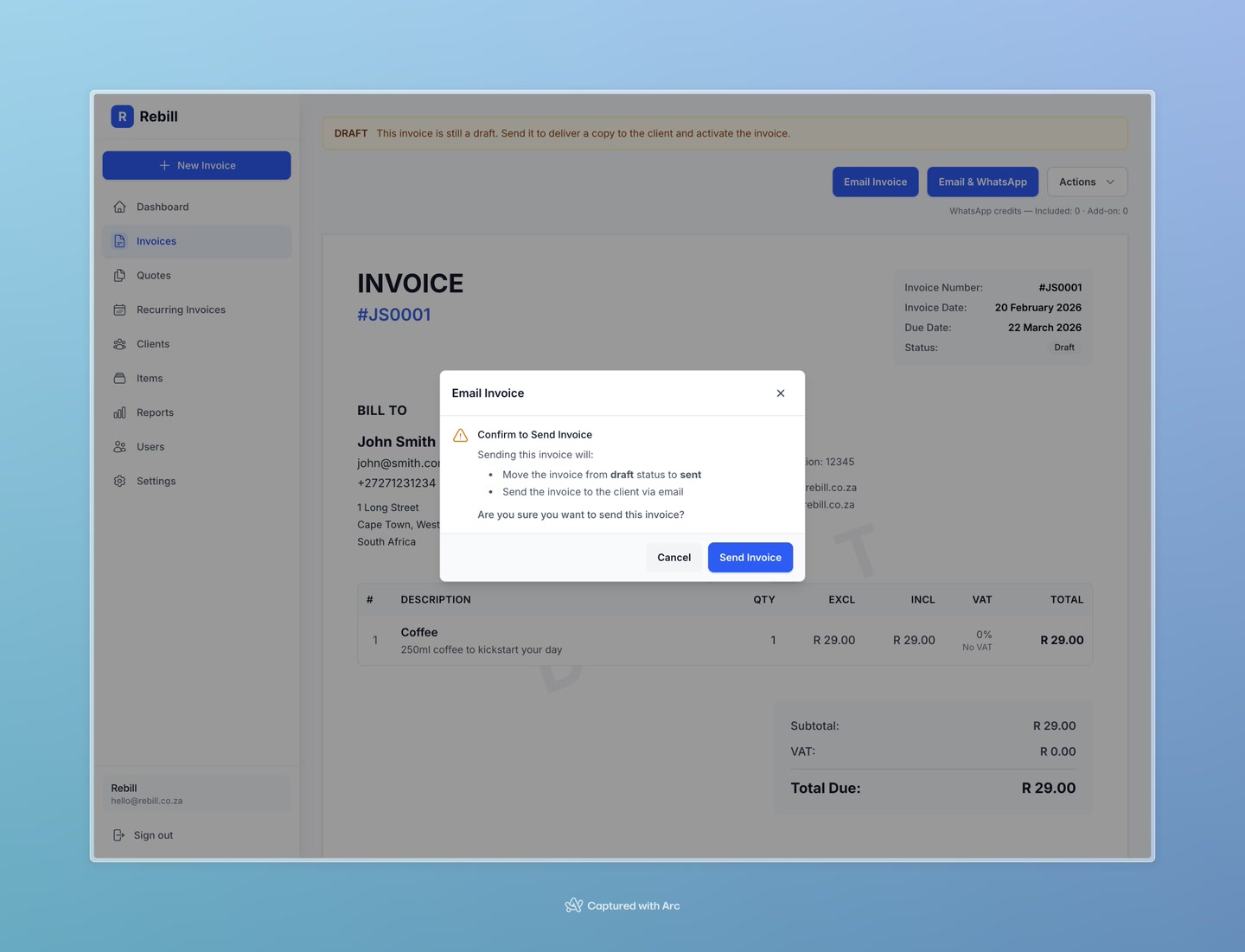
Your client will receive a professional email with a link to view and pay their invoice online. The invoice status will change from Draft to Sent.
Sending by WhatsApp
If you're on a Premium plan and have WhatsApp credits, you can also send invoices via WhatsApp. This is great for clients who are more responsive on WhatsApp than email.
- 1
Click "Email & WhatsApp"
Click the "Email & WhatsApp" button next to the Email button. This sends the invoice by both email and WhatsApp at the same time.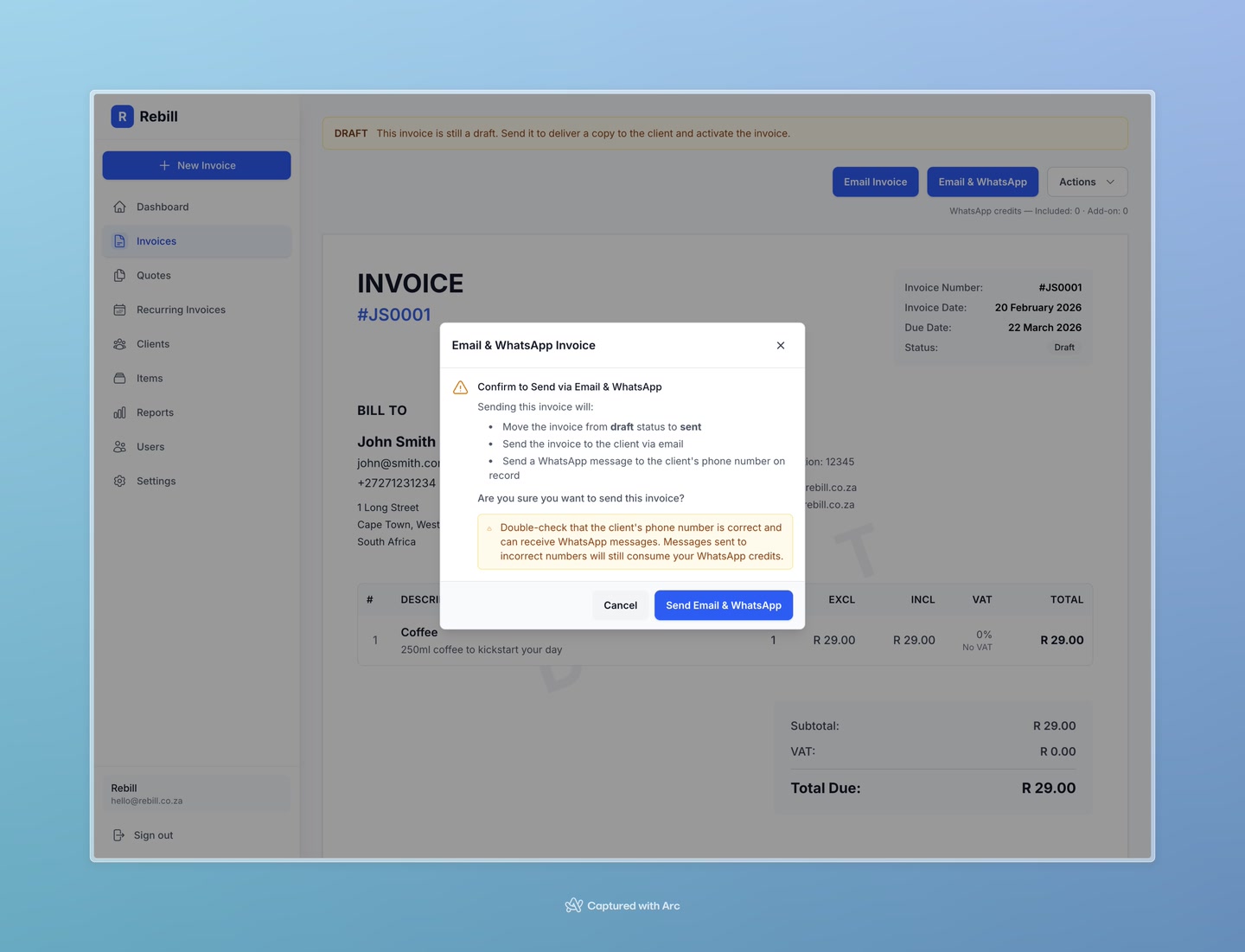
- 2
Review and confirm
A confirmation window shows the email address and phone number it will be sent to, plus the WhatsApp credit cost. Click "Send Invoice" to confirm.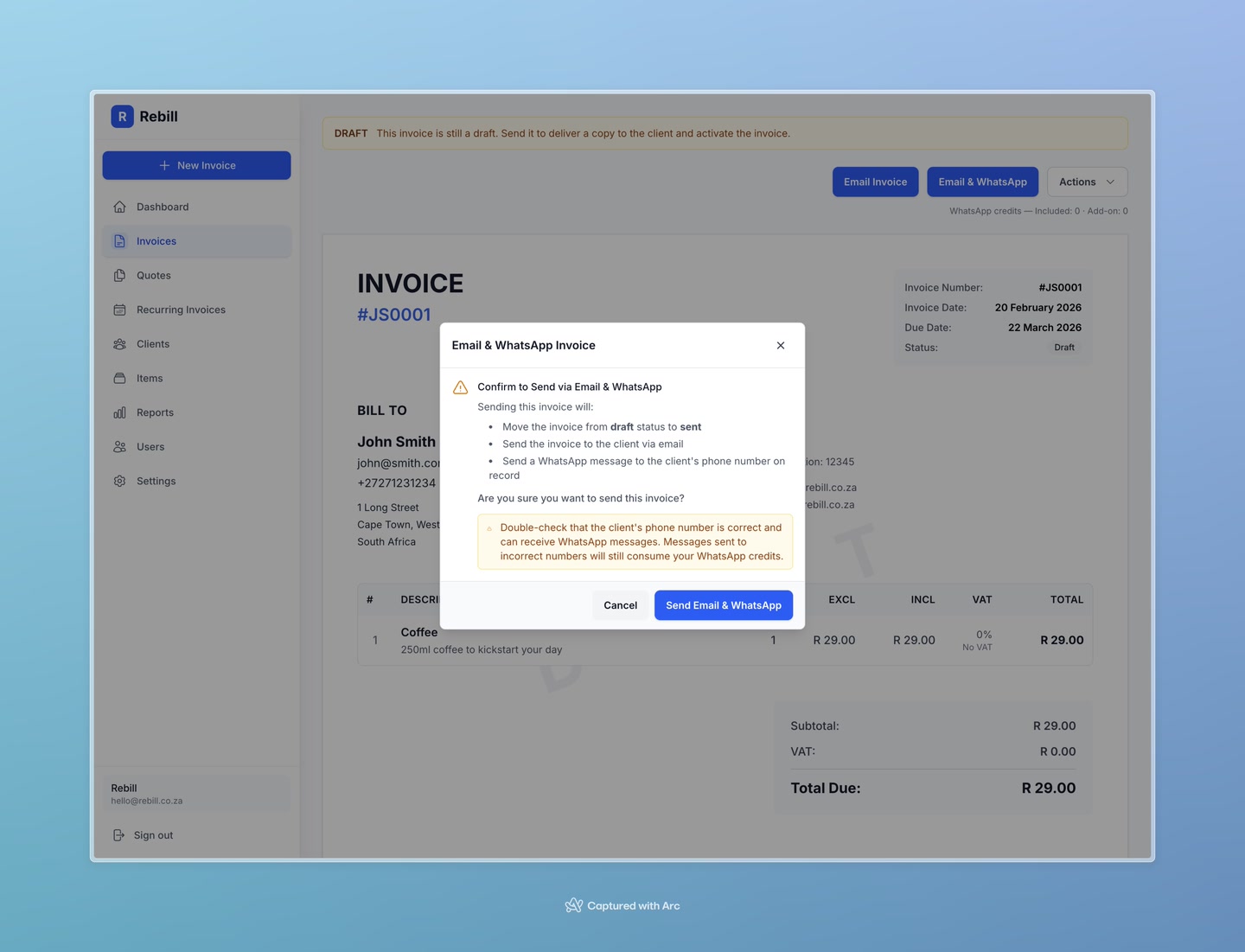
Client needs a phone number
The WhatsApp option only appears if your client has a phone number saved on their profile. To add one, go to Clients, open the client, and edit their details.Other sending options
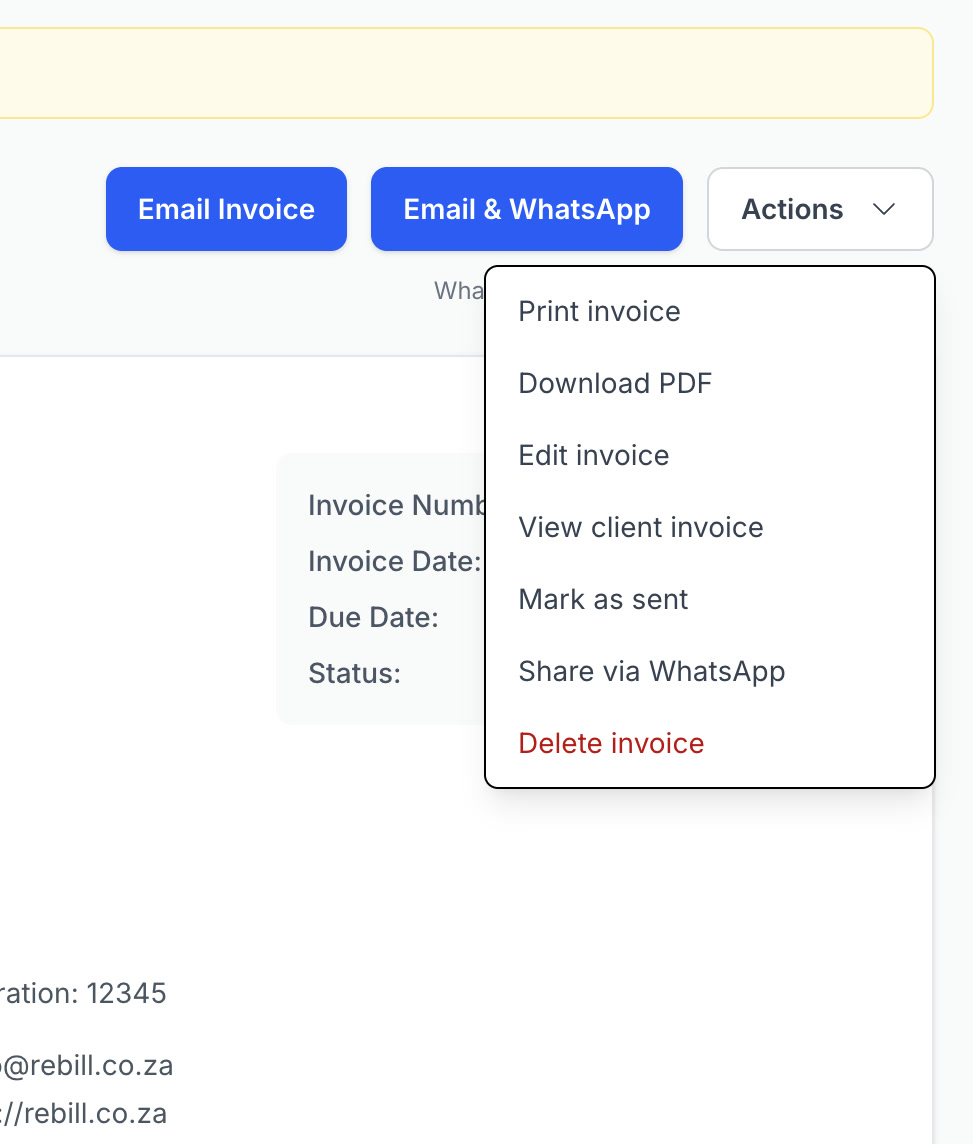
Under the Actions dropdown (top right of the invoice), you'll find more options:
- Mark as sent — changes the status to Sent without sending any notification. Use this if you've sent the invoice manually (e.g. printed and handed over).
- View client invoice — opens the public link your client sees. You can copy this link and send it yourself however you like.
- Share via WhatsApp — opens WhatsApp with a pre-filled message containing the invoice link. This does not use WhatsApp credits — it simply opens WhatsApp on your device.