Connecting a payment gateway lets your clients pay their invoices online directly from the invoice link — by card, EFT, or other methods depending on the gateway. Once connected, payment buttons appear automatically on your client-facing invoices.
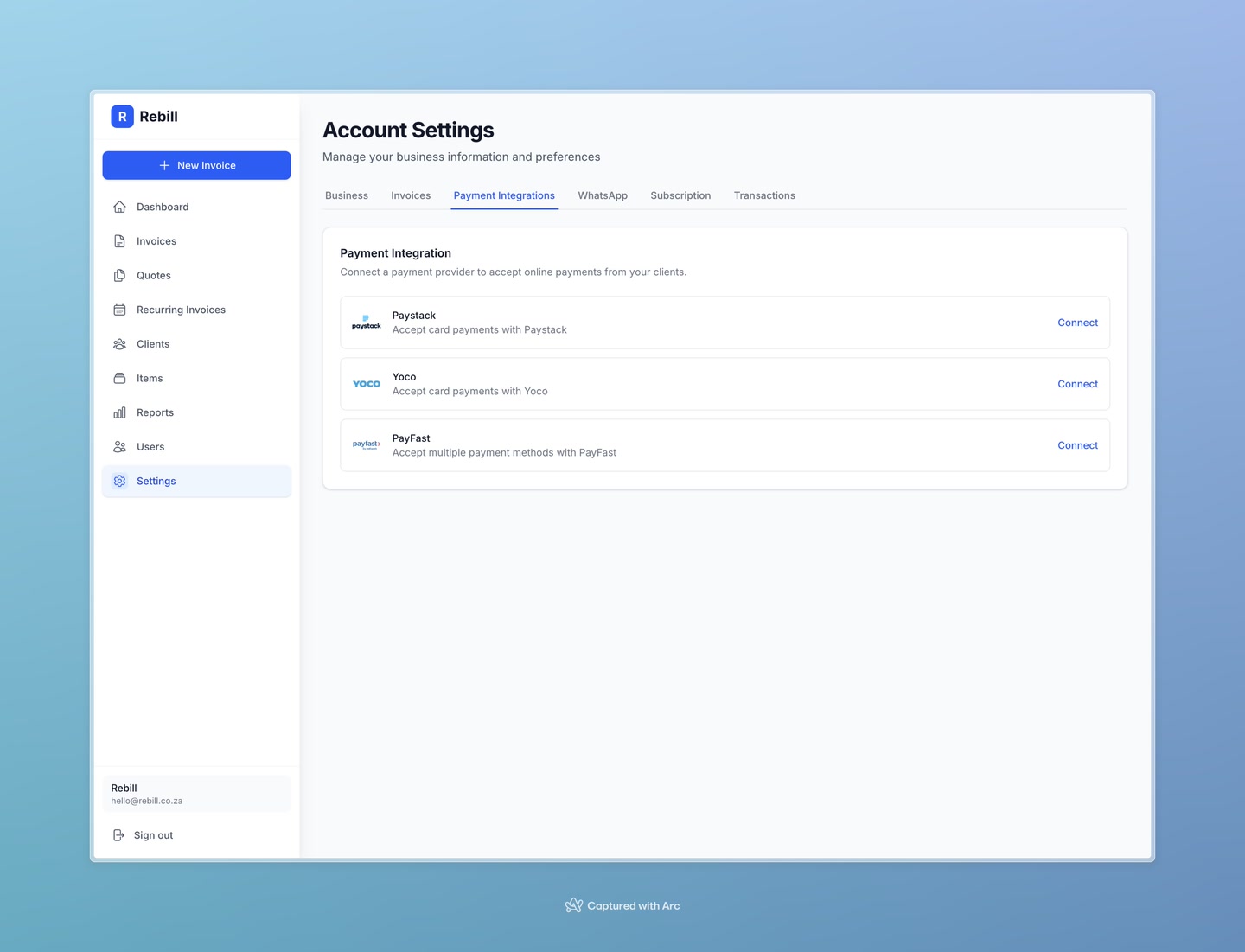
Paystack
- 1
Get your Paystack API keys
Log in to your Paystack account at dashboard.paystack.com. Go to Settings → API Keys & Webhooks and copy your Public Key and Secret Key.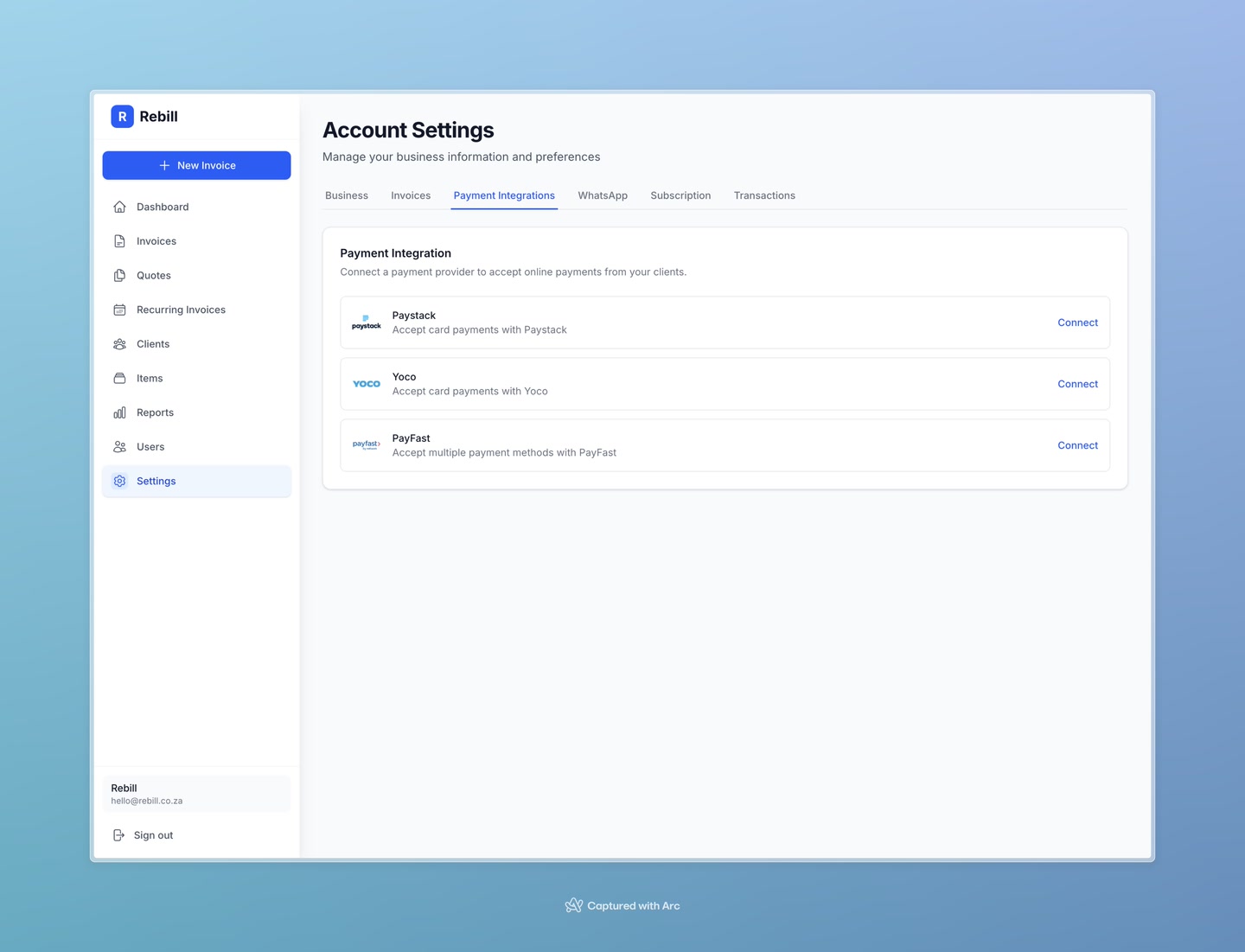
- 2
Enter the keys in Rebill
In Rebill, go to Settings → Payments. Paste your Public Key and Secret Key into the Paystack fields.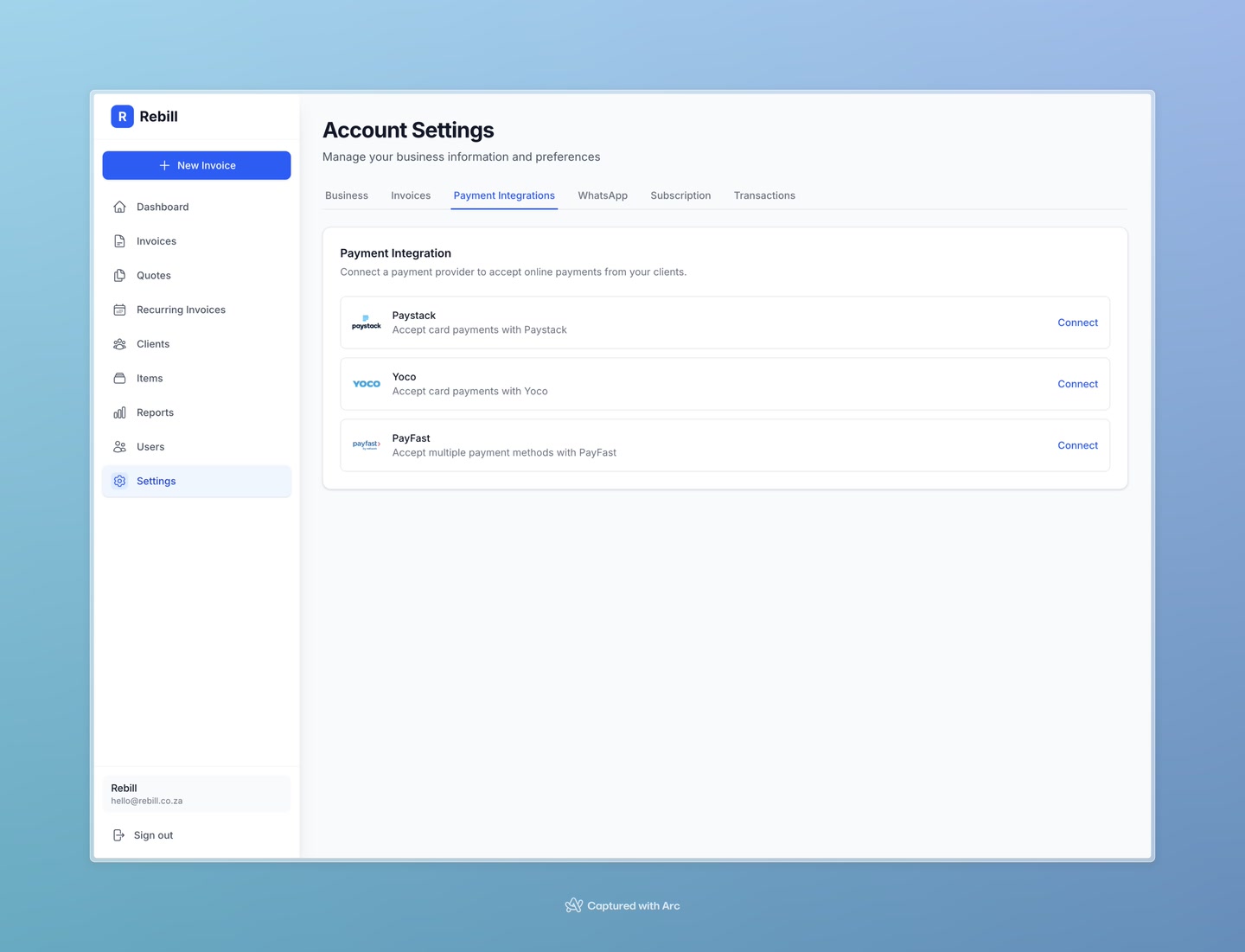
- 3
Save your settings
Click "Save Settings" to connect Paystack. A pay button will now appear on your client-facing invoices.
Yoco
- 1
Get your Yoco public key
Log in to your Yoco account and navigate to Developers → API Keys to find your public key.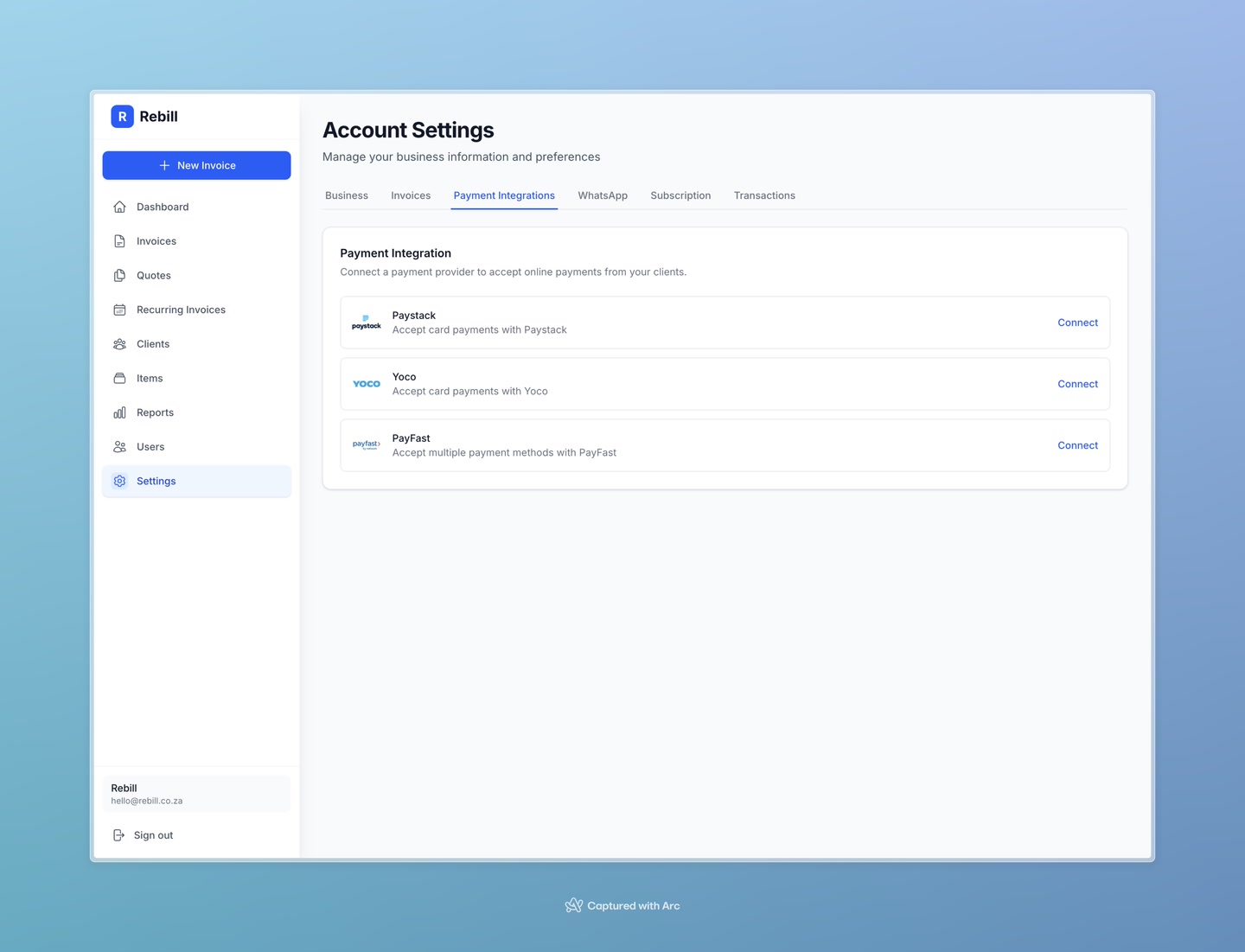
- 2
Enter and enable
Paste your Public Key into the Yoco section in Rebill's Payments settings, then click "Save Settings".
PayFast
- 1
Get your PayFast credentials
Log in to your PayFast account. Go to Settings → Integration to find your Merchant ID, Merchant Key, and Passphrase.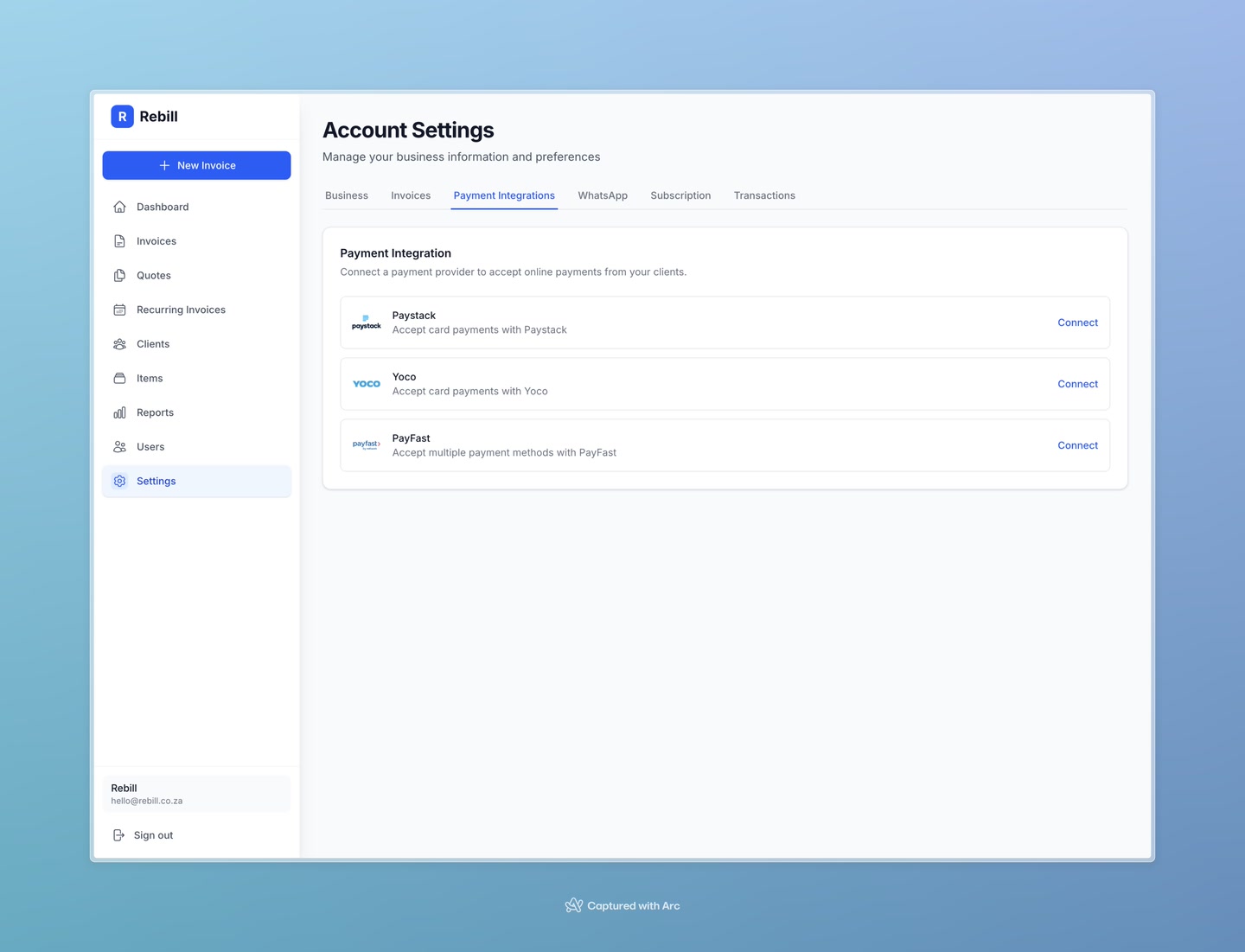
- 2
Enter and enable
Paste all three into the PayFast section in Rebill's Payments settings, then click "Save Settings".
Note
You can have multiple payment gateways active at the same time. Your clients will see buttons for each enabled gateway on their invoice.