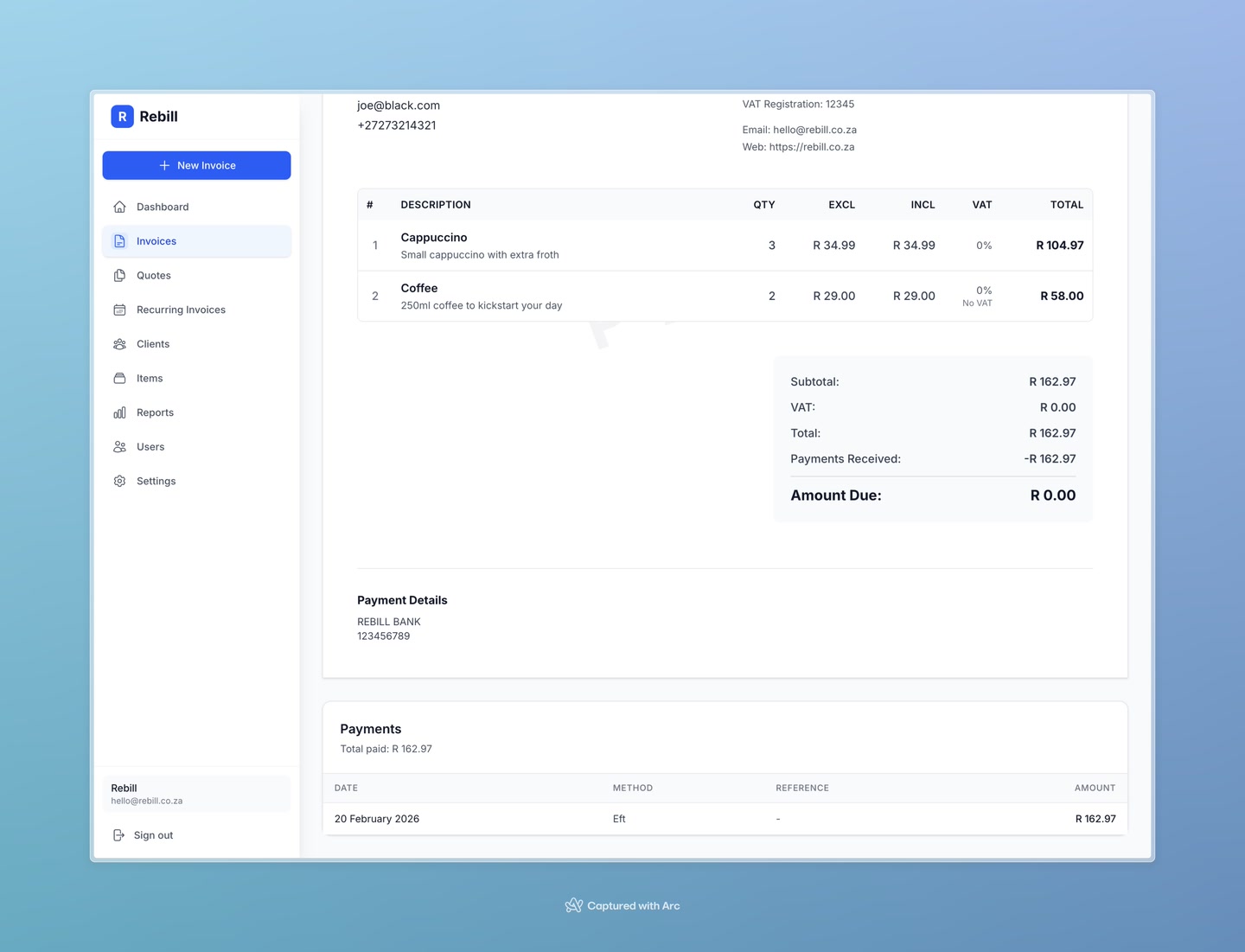
When a client pays you by EFT, cash, or any other manual method, you need to record the payment in Rebill so the invoice is marked as paid. If a client pays online via Paystack or Yoco, this happens automatically.
- 1
Open the invoice
Go to Invoices and click on the invoice you received payment for.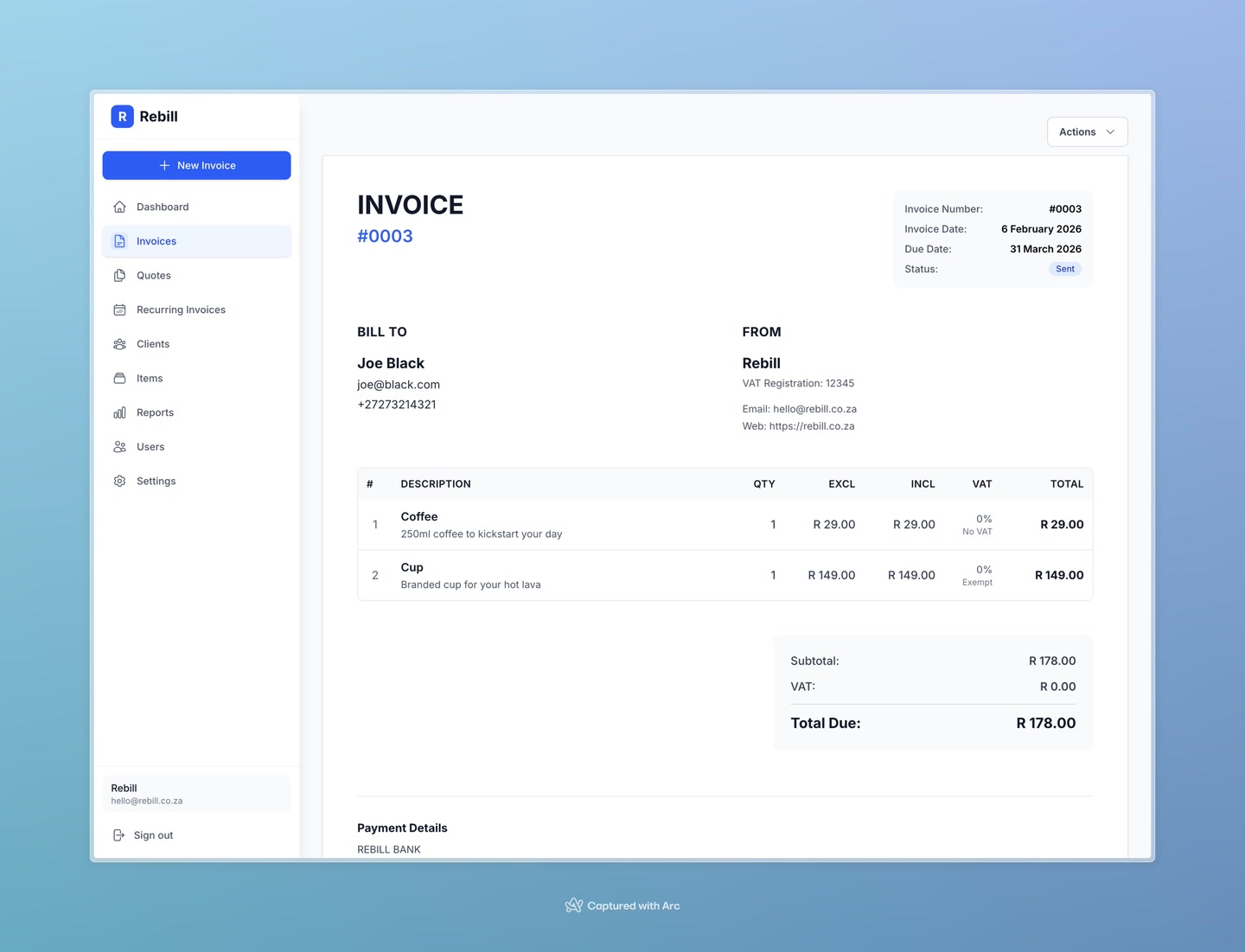
- 2
Open the Actions menu and click "Capture payment"
Click the Actions button (top right) to open the dropdown, then select "Capture payment".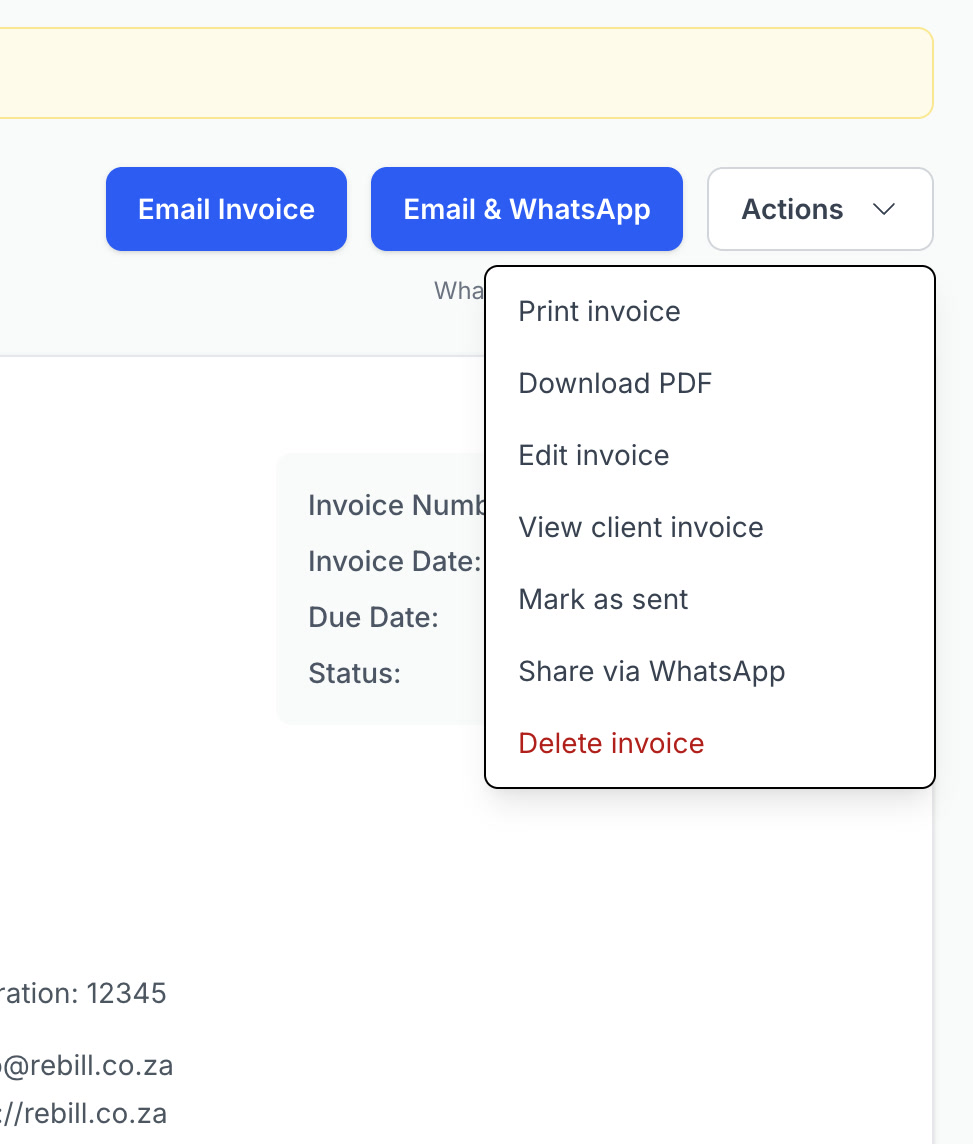
- 3
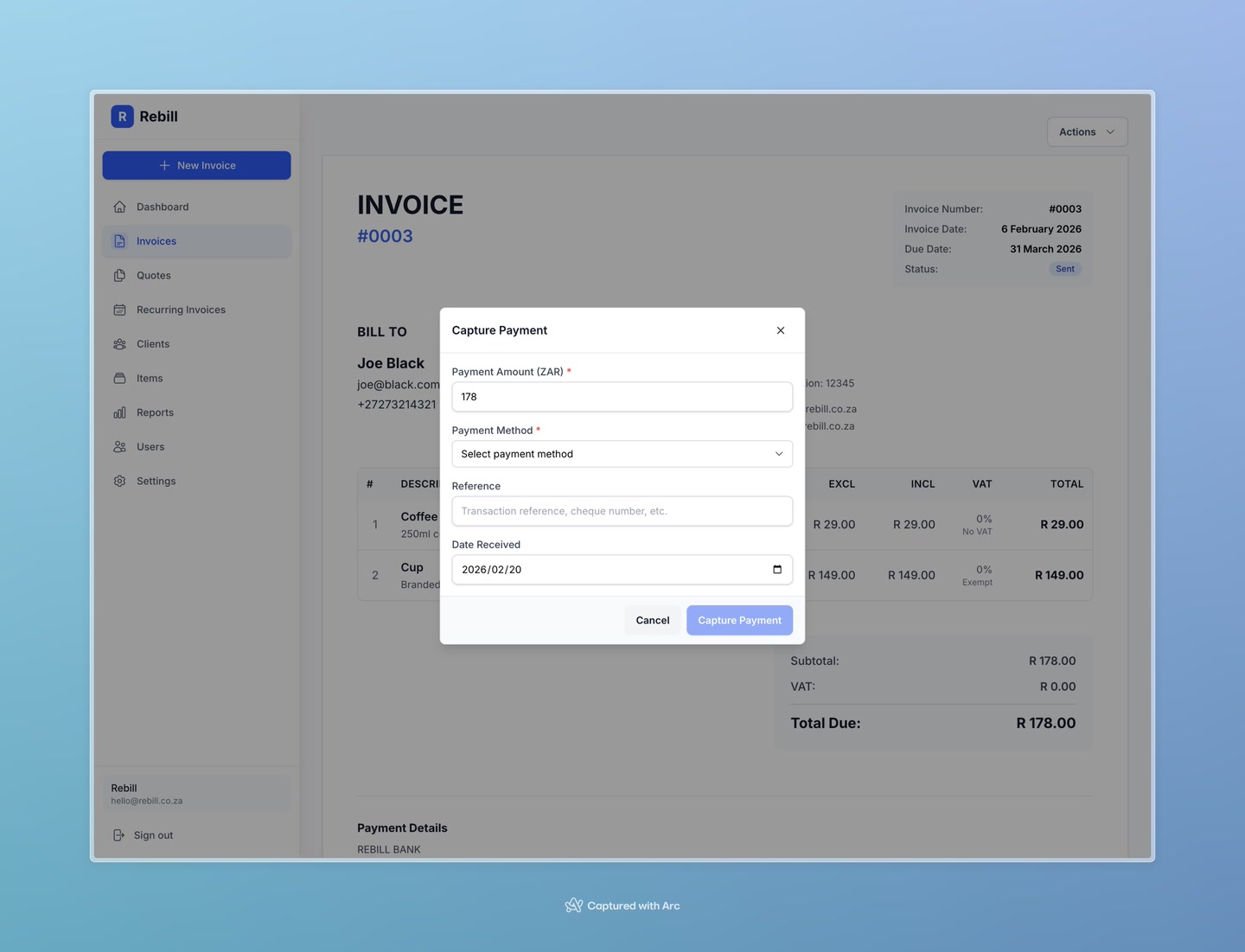
Fill in the payment details
Fill in:- Amount — how much was paid. If it's the full invoice amount, it's pre-filled for you. If it's a partial payment, change it to the actual amount received.
- Payment Method — choose Cash, EFT, Card, or Other
- Reference — optional. Enter the client's payment reference or your bank reference number for your records.
- Date Received — the date the money arrived in your account
- 4
Click "Capture Payment"
Click "Capture Payment" to save. The invoice will update to Paid (if fully paid) or Partially Paid (if you recorded less than the full amount).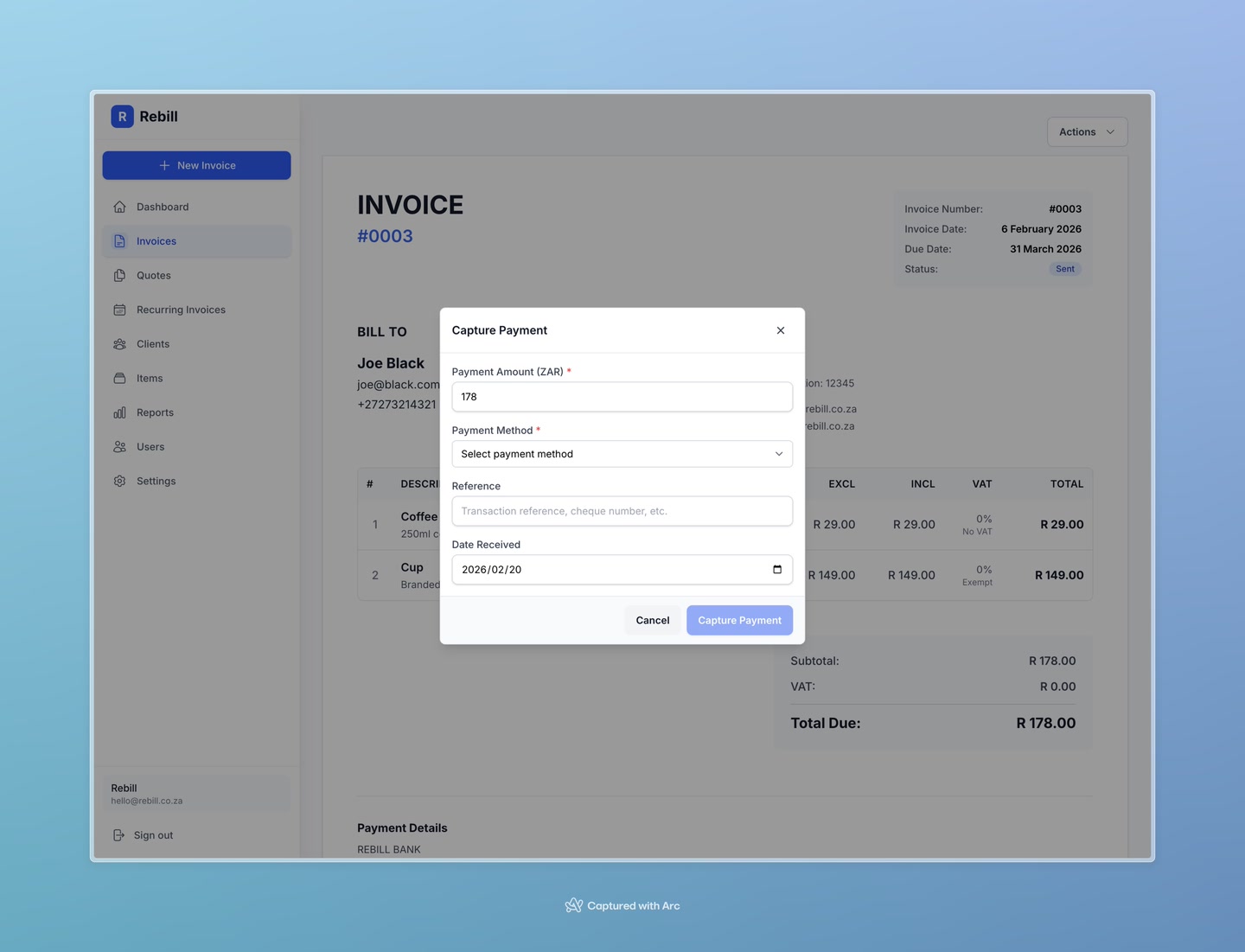
Partial payments
If a client pays in instalments, you can record each payment separately. Just capture payment each time money arrives — the invoice will show Partially Paid until the full amount has been received, then switch to Paid automatically.Viewing payment history
Below the invoice document, you'll find a Payments section that lists every payment recorded against this invoice — including the date, method, reference, and amount.