Sometimes you'll need to void an invoice — either because it was created by mistake or the job was cancelled. Rebill handles this differently depending on whether the invoice has been sent or not.
Deleting a draft invoice
Draft invoices (not yet sent) can be permanently deleted. Since the client never saw it, there's no record to keep.
- 1
Open the draft invoice
Go to Invoices and click on the draft invoice you want to remove. - 2
Click Actions → Delete invoice
Open the Actions dropdown and click "Delete invoice".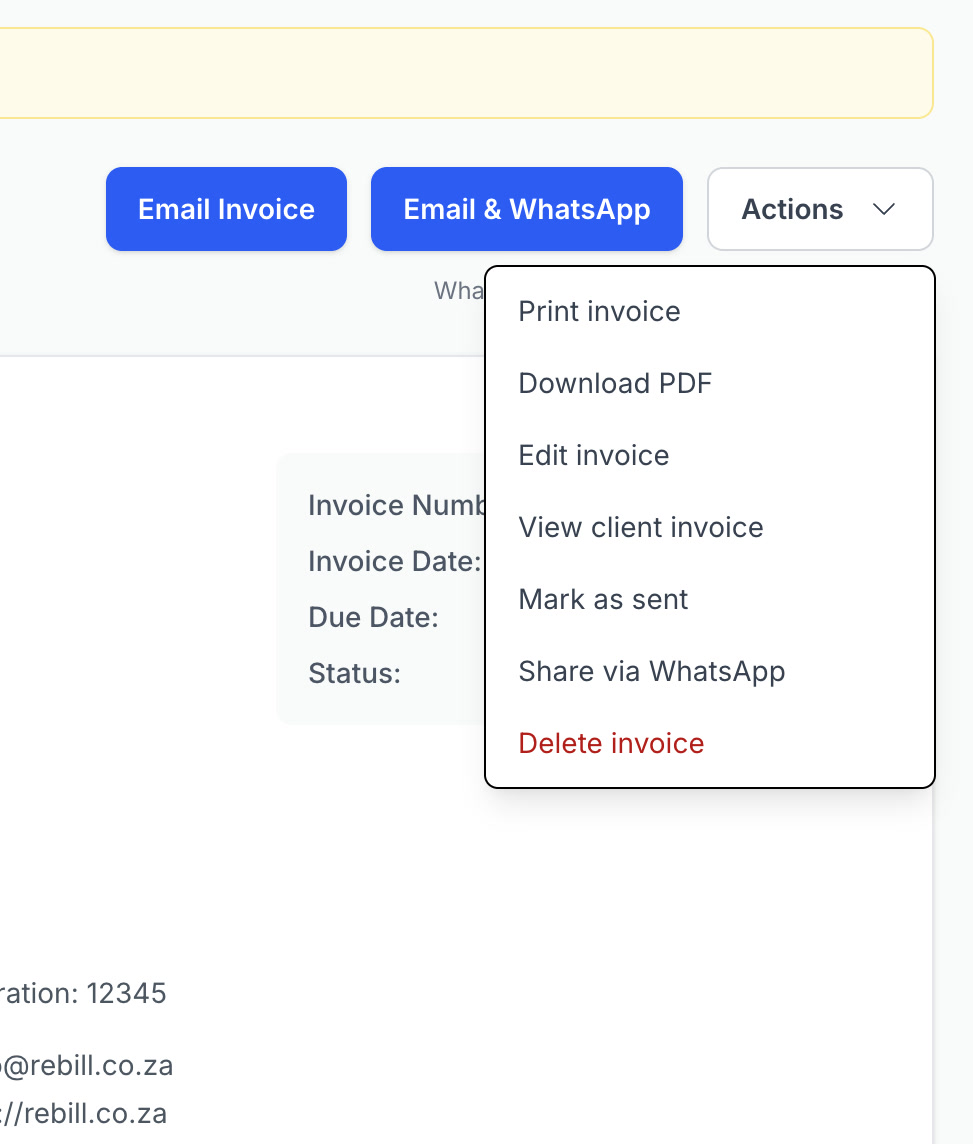
- 3
Confirm the deletion
A confirmation dialog will appear. Click "Delete Invoice" to permanently remove the invoice.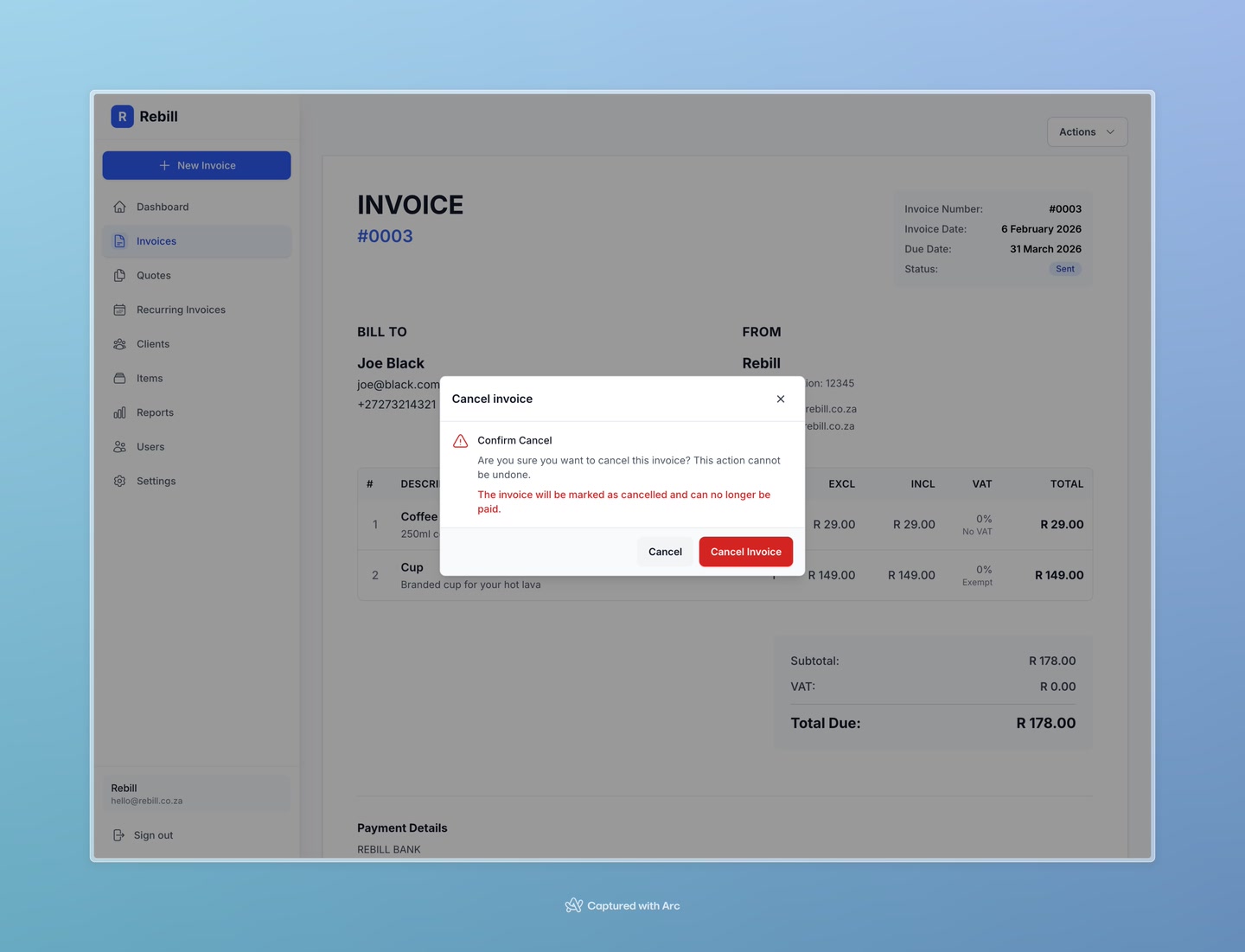
Cancelling a sent invoice
Once an invoice has been sent to a client, you should cancel it rather than delete it. Cancelling keeps a record of the invoice in your system (important for your accounting), but marks it as void so it won't appear in your outstanding balance.
- 1
Open the sent invoice
Go to Invoices and click on the invoice you want to cancel. - 2
Click Actions → Cancel invoice
Open the Actions dropdown and click "Cancel invoice".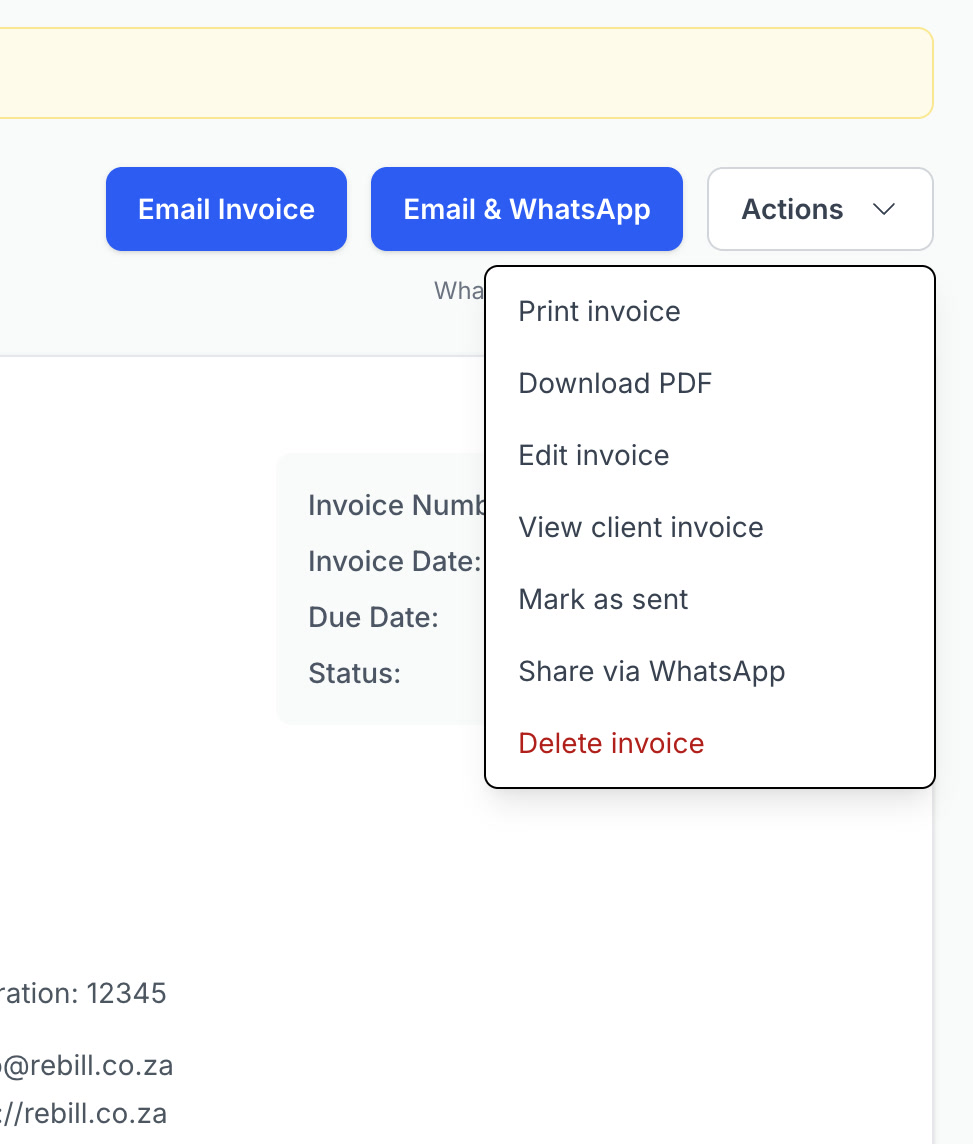
- 3
Confirm the cancellation
Confirm in the dialog that appears. The invoice status will change to Cancelled.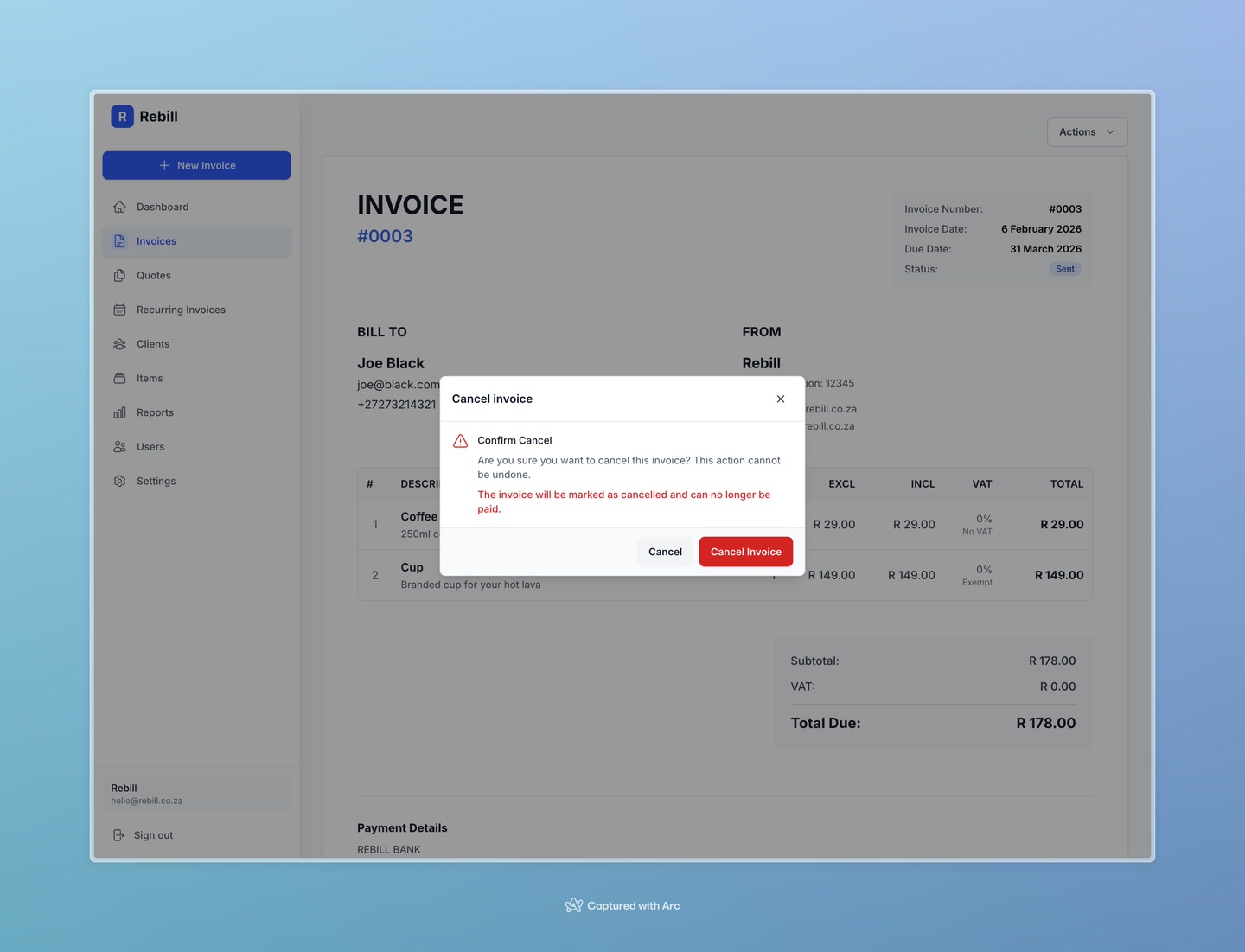
Important
Cancellation cannot be undone. If you cancelled an invoice by mistake, you'll need to create a new one.