Rebill offers multiple invoice templates to match your style. You can also set default notes and bank details so you don't have to type them out on every invoice.
- 1
Go to Settings → Invoices
Click Settings in the sidebar, then click the Invoices tab.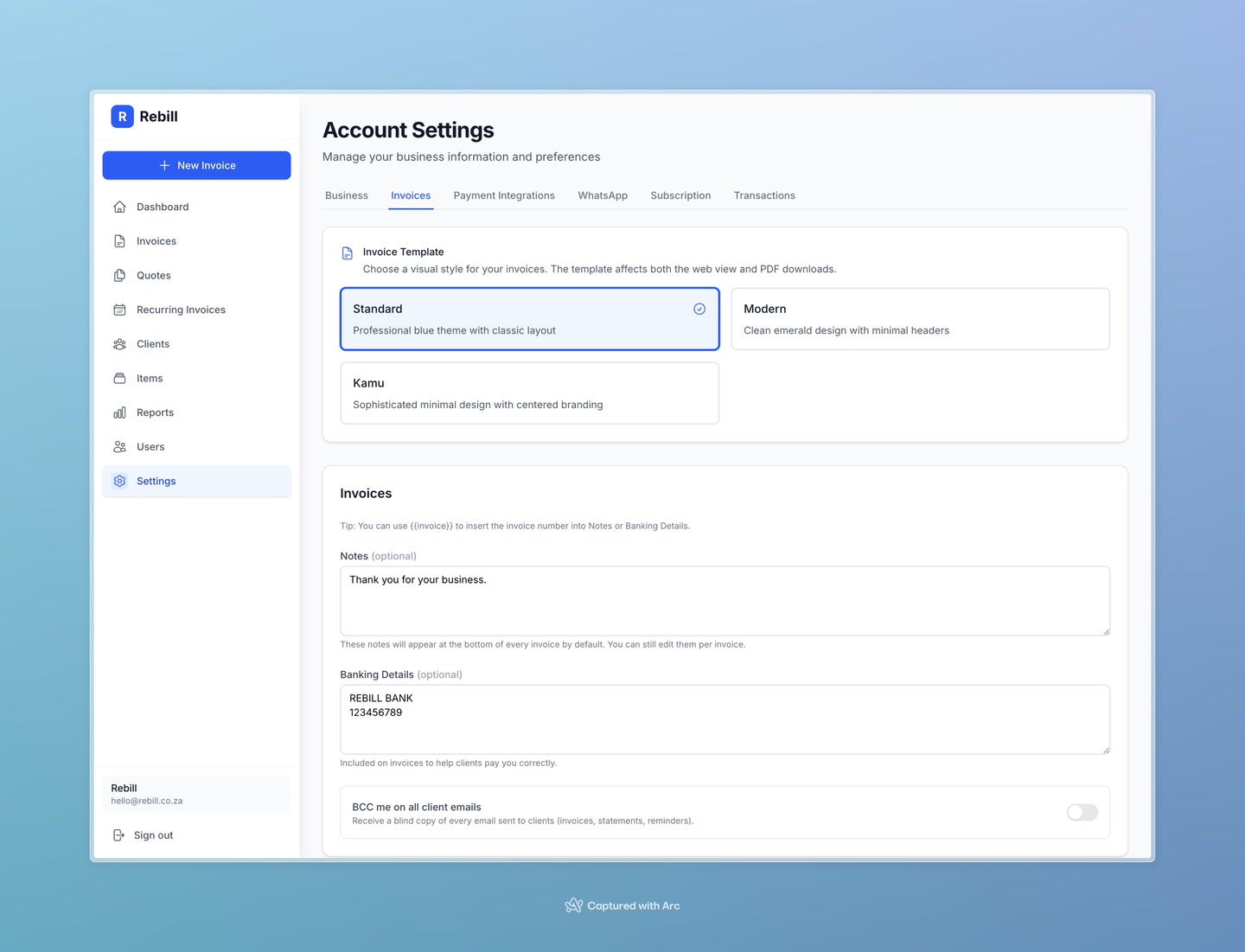
- 2
Choose a template
You'll see thumbnail previews of the available invoice templates. Click on the one you prefer — it will be highlighted to show it's selected.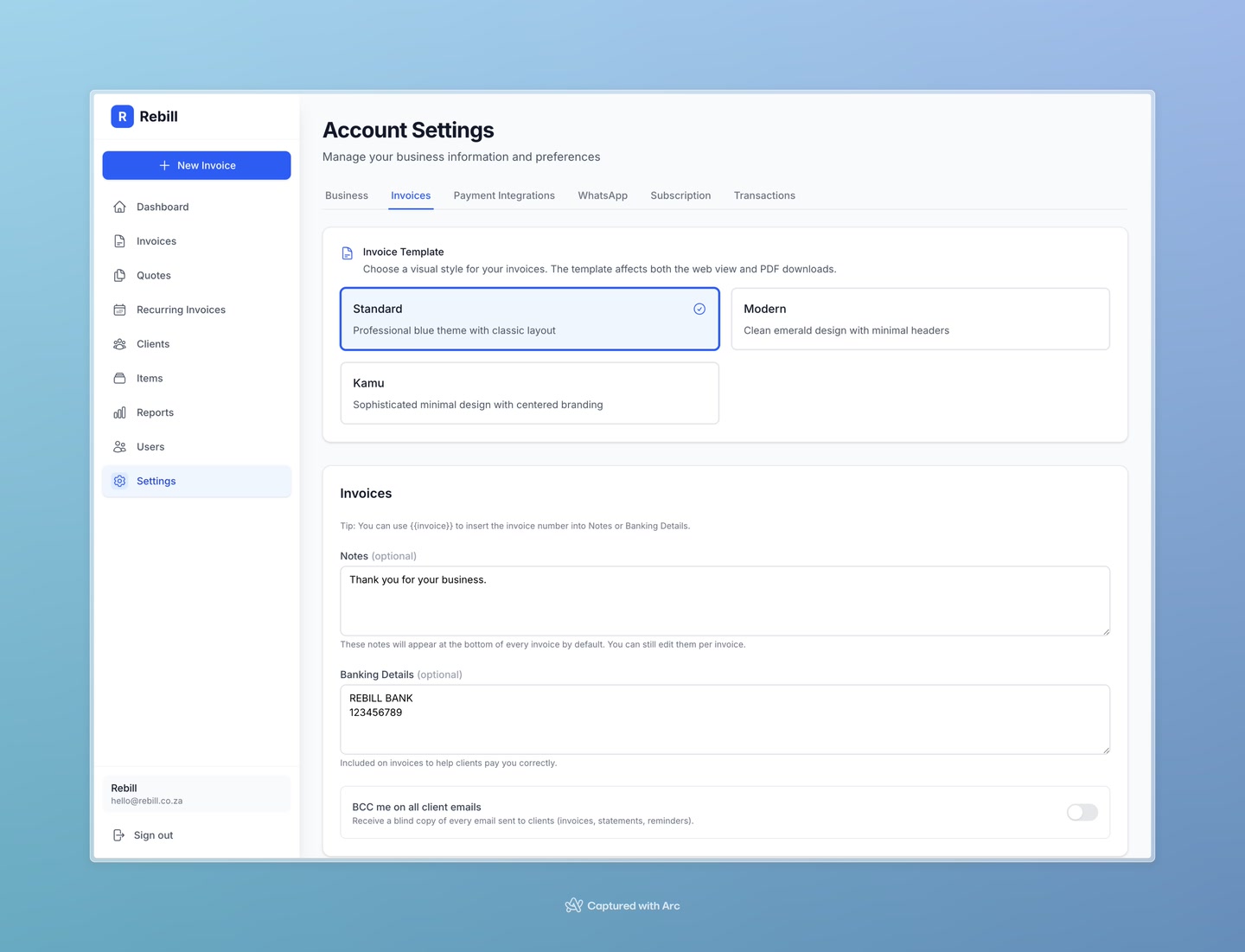
- 3
Set default notes
In the Default Notes field, enter any text you want to appear at the bottom of every invoice by default. For example: "Payment due within 30 days. Thank you for your business."
You can always override this on individual invoices.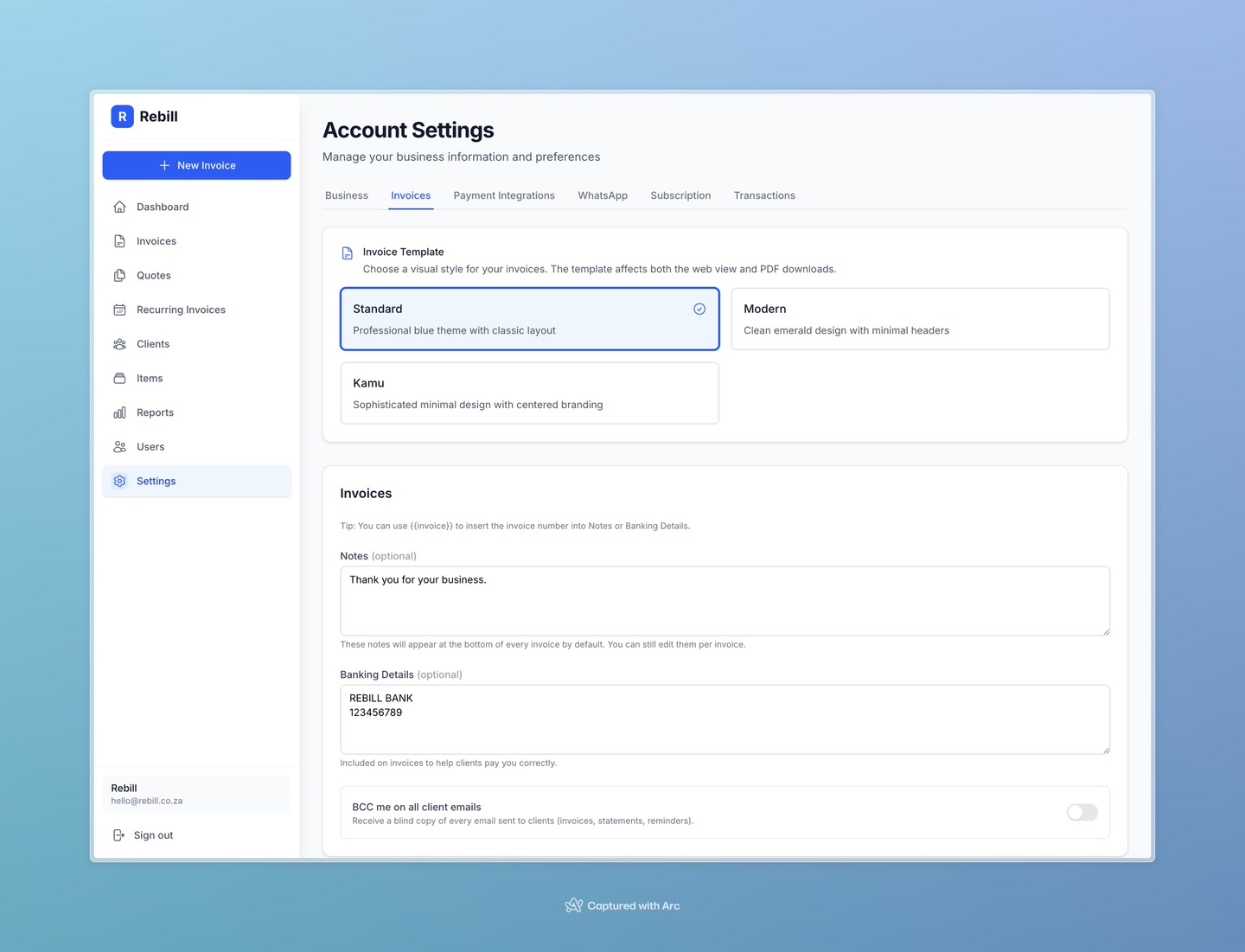
- 4
Set bank details
Enter your banking details in the Bank Details field. This is shown on invoices so clients know where to pay by EFT. Include your bank name, account holder, account number, and branch code.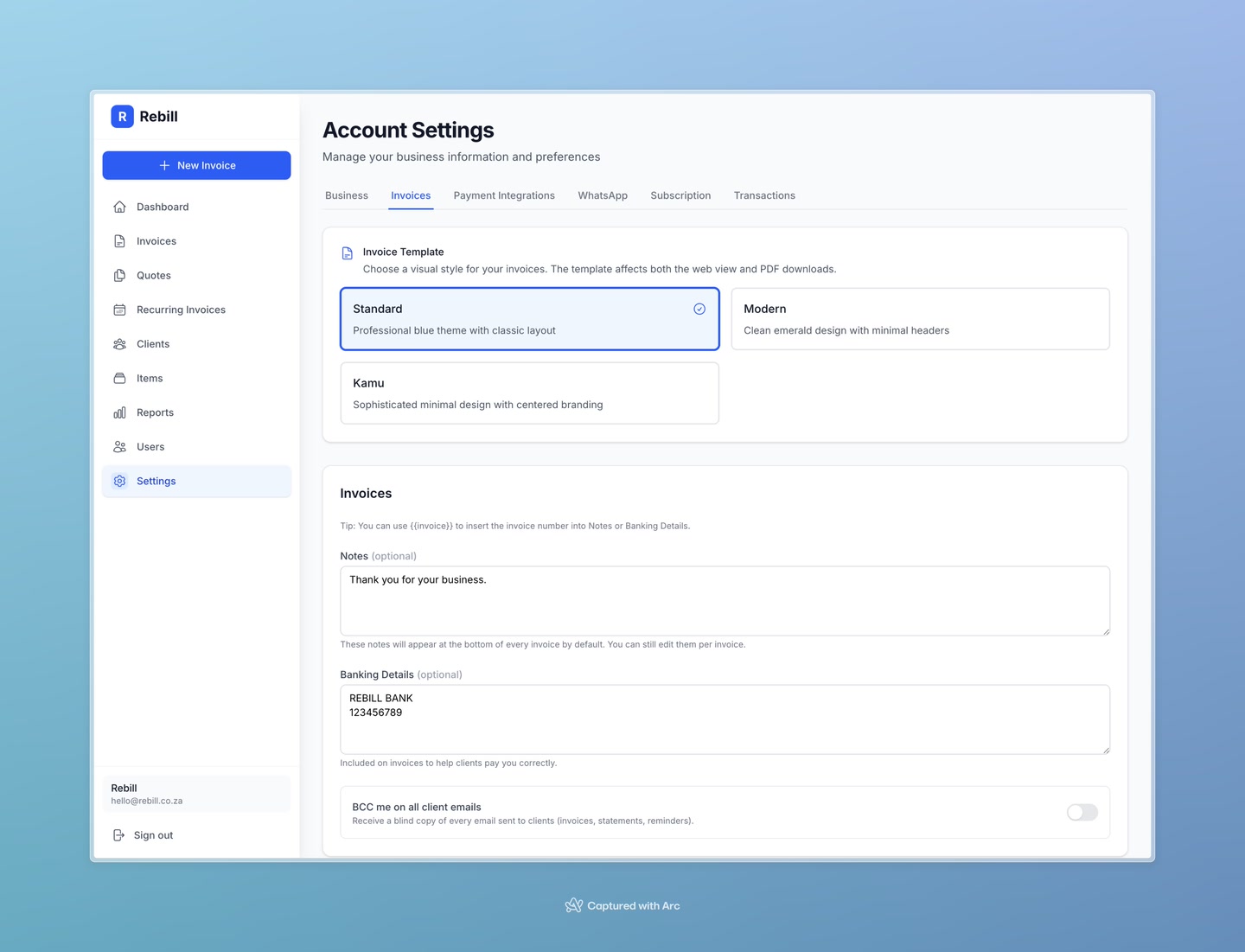
- 5
Set invoice numbering
You can set a prefix (e.g. "INV-") and the next invoice number. Rebill will number your invoices automatically from that starting point.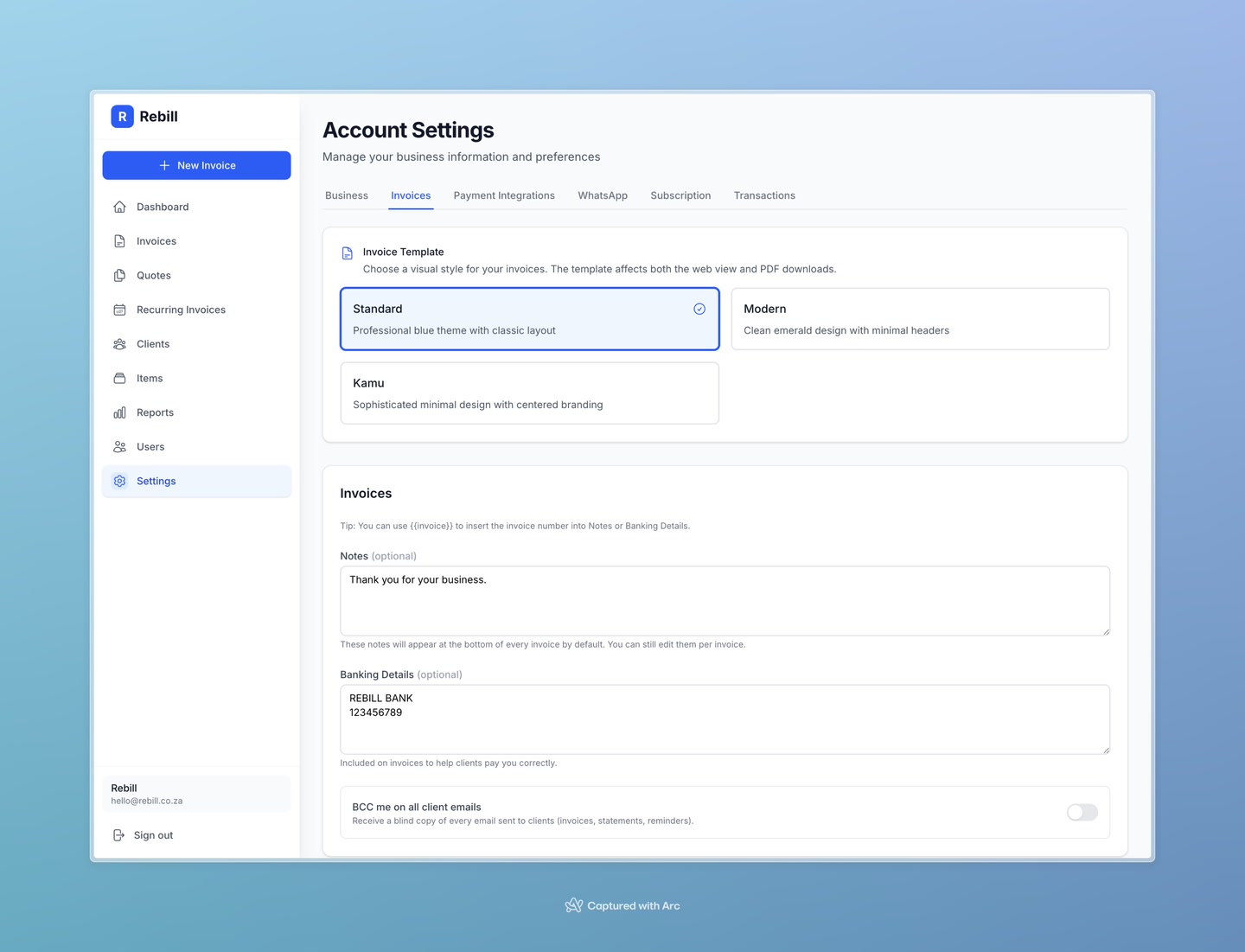
- 6
Save your changes
Click "Save Settings" at the bottom.