When a client accepts your quote, you can convert it to an invoice in seconds. All the line items and details carry over automatically — no need to re-enter anything.
- 1
Open the accepted quote
Go to Quotes and click on the quote with Accepted status.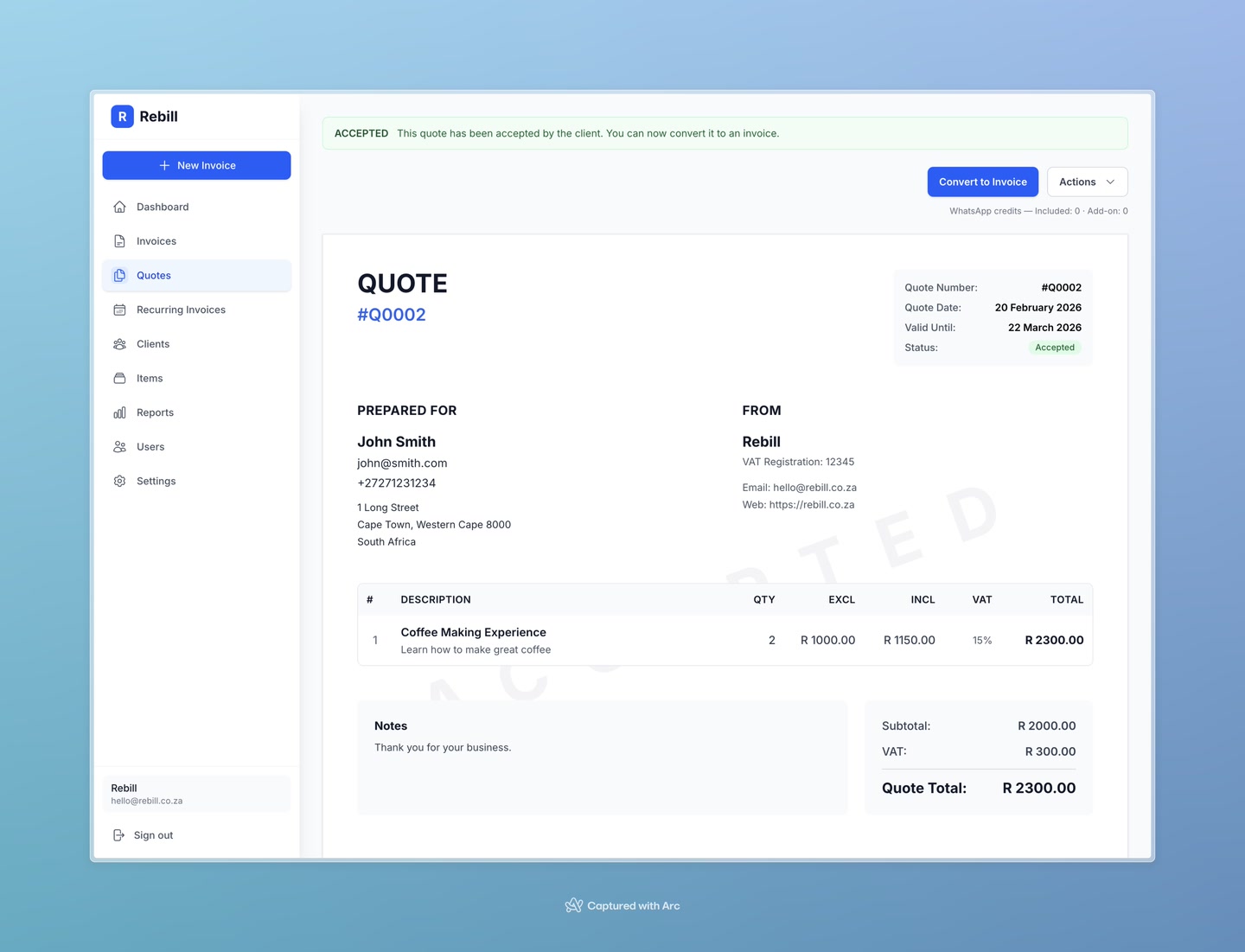
- 2
Click "Convert to Invoice"
You'll see a green "Convert to Invoice" button at the top. Click it.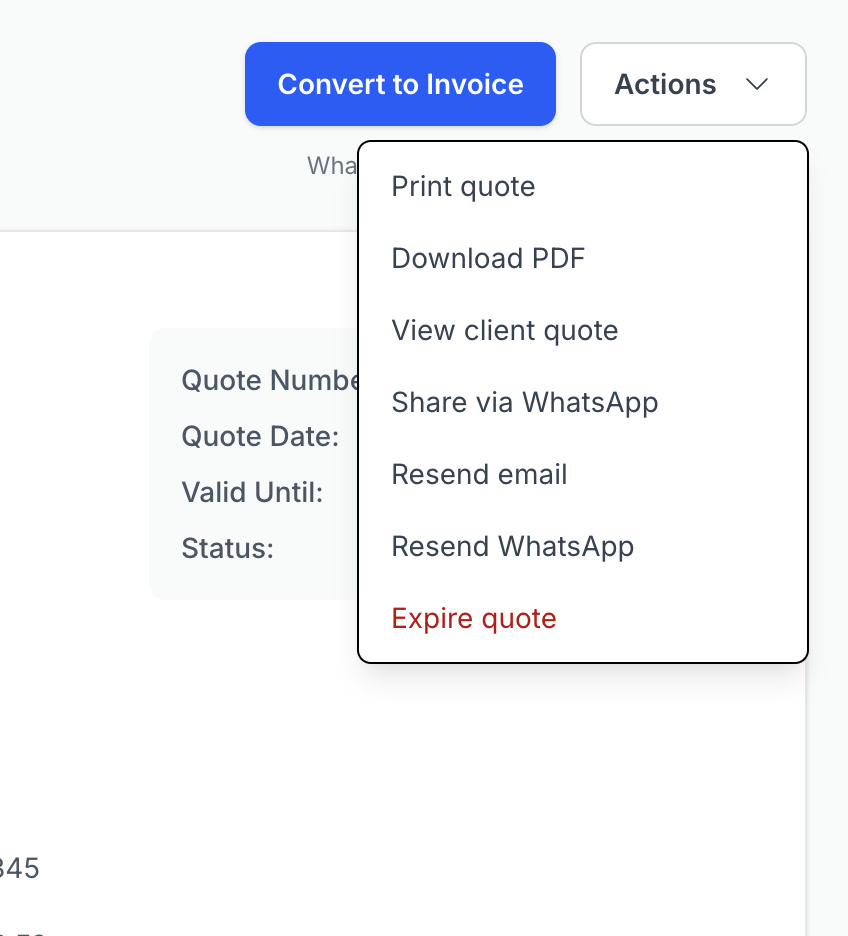
- 3
Set the due date
A small window will appear asking for the due date of the invoice. Pick a date and click "Convert to Invoice".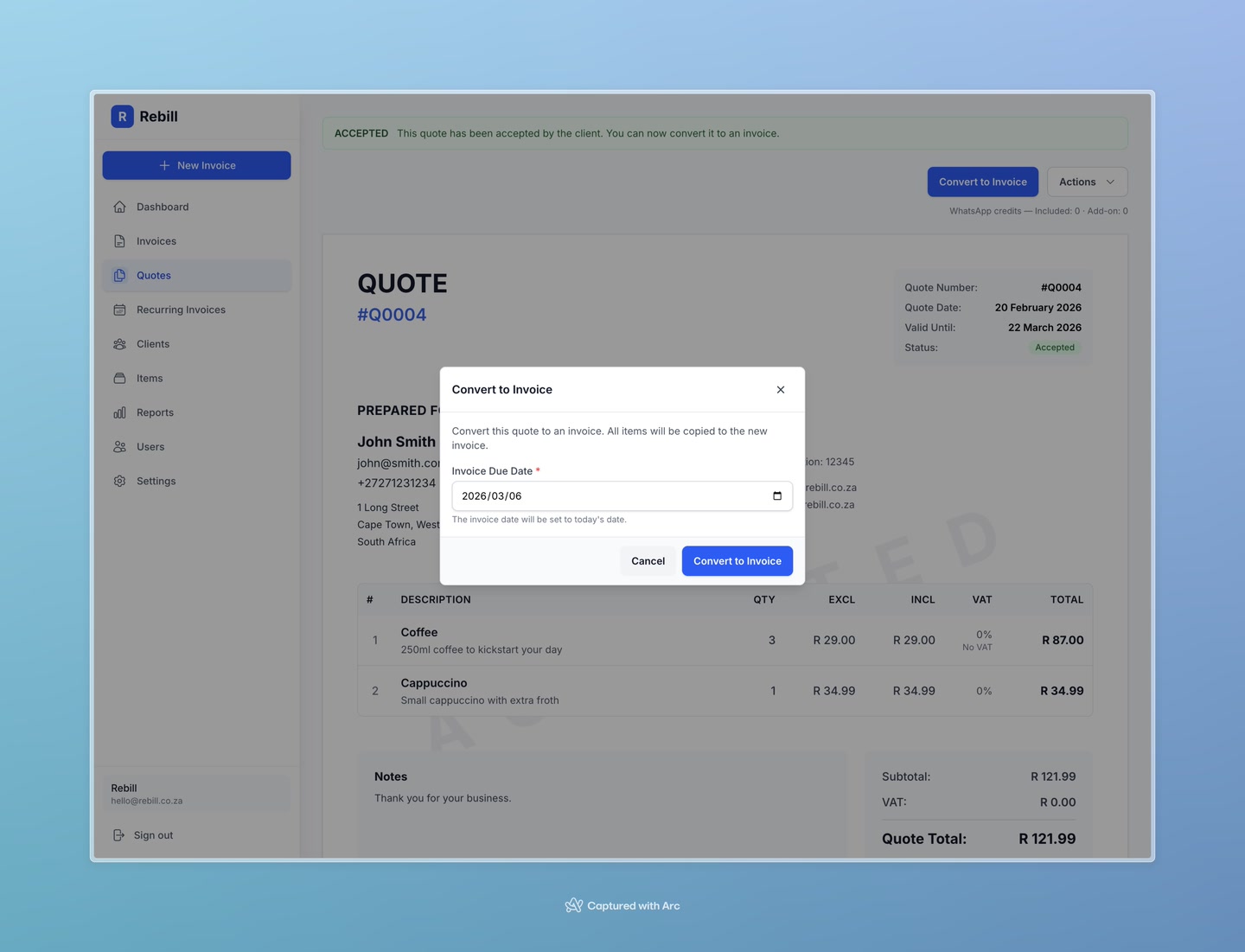
- 4
Invoice created
You'll be taken straight to the new invoice. It will have all the same line items and totals as the quote. The quote status will change to Converted and will show a link to the invoice.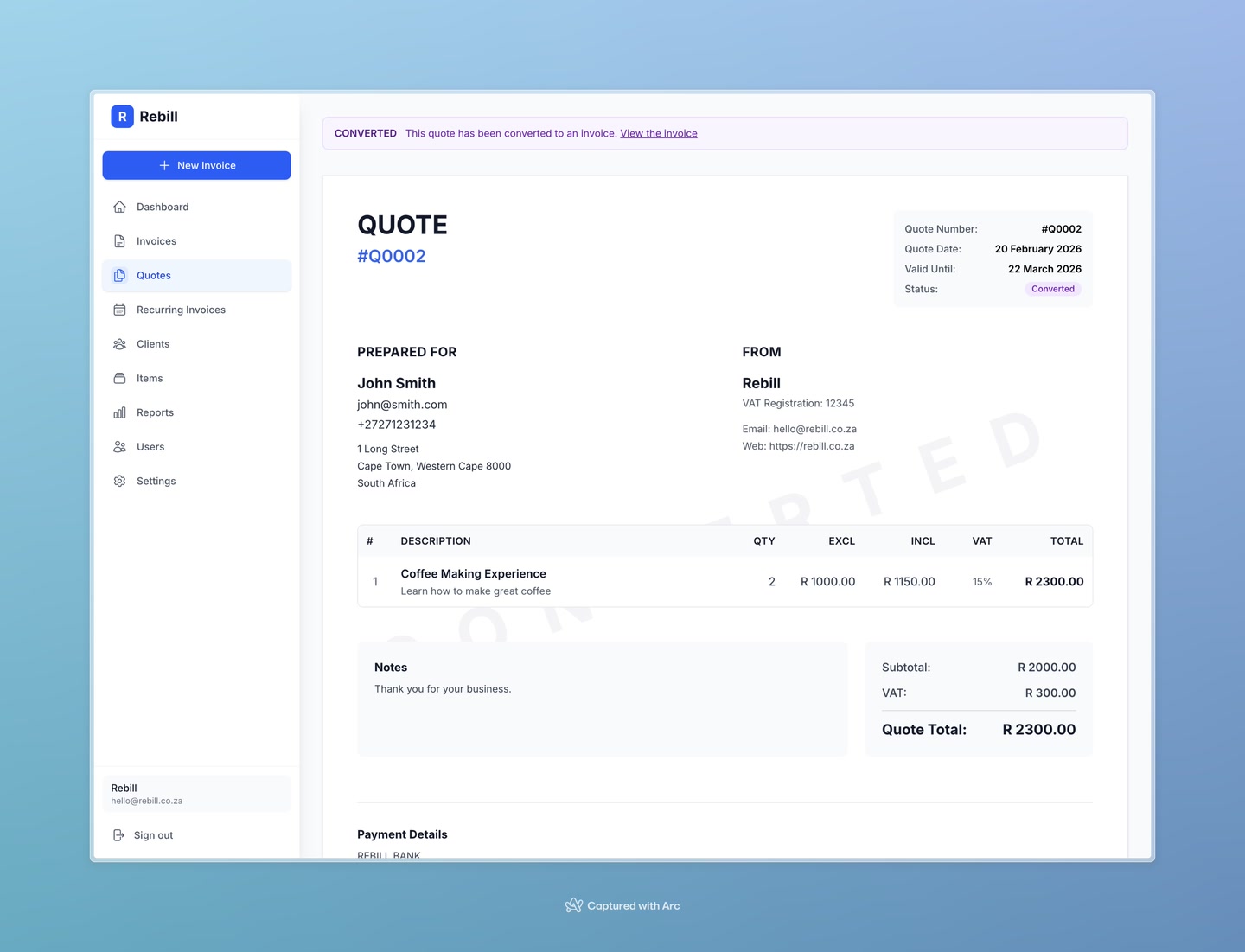
Note
Converting a quote to an invoice does not automatically send the invoice to the client. You'll need to send it separately.