A quote (sometimes called a proposal or estimate) lets you share a price with a client before you do the work. If they accept, you can convert it straight into an invoice with one click.
- 1
Go to Quotes
Click on Quotes in the left sidebar, then click "Add Quote" at the top right.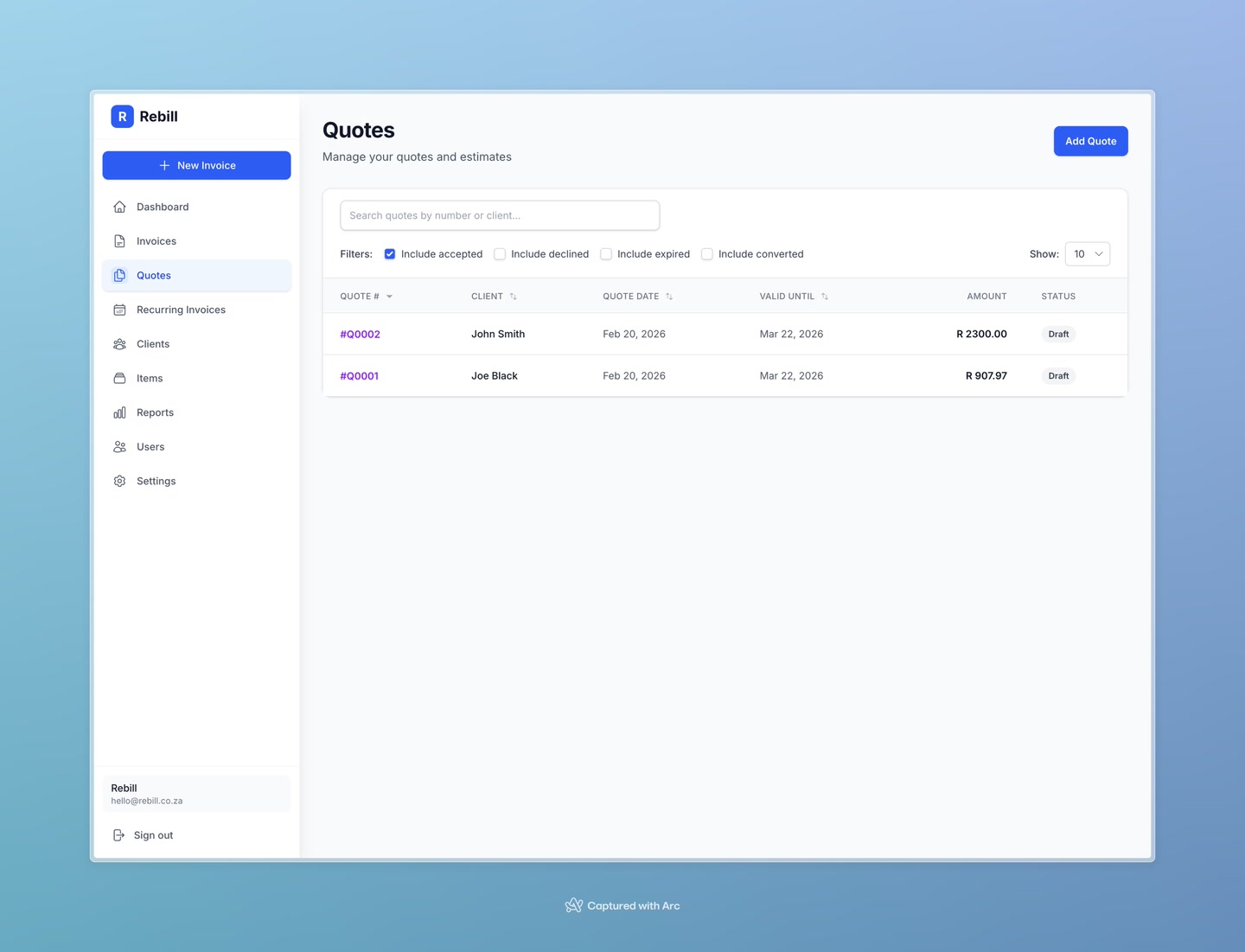
- 2
Select your client
Start typing the client's name and select them from the dropdown. If they're not in your list yet, you can add them on the spot.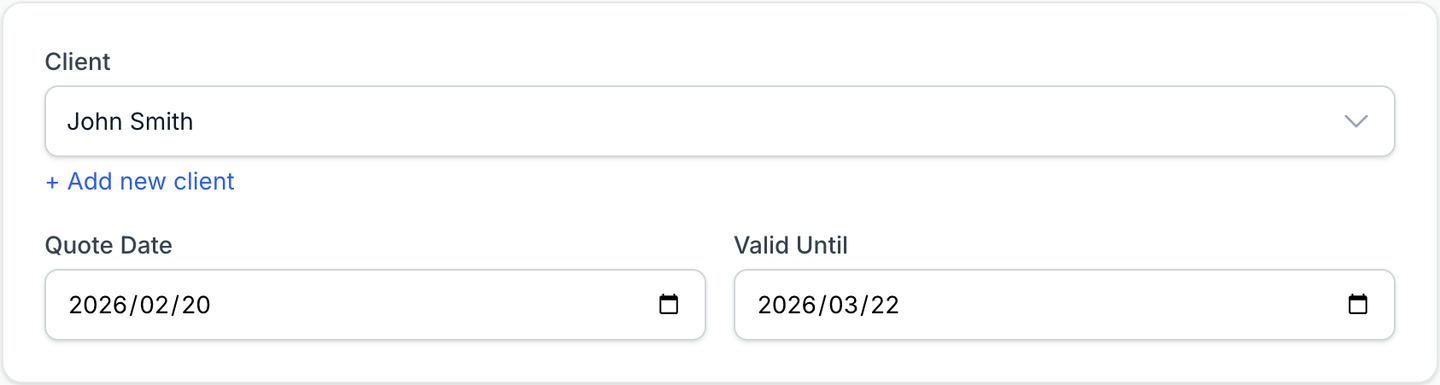
- 3
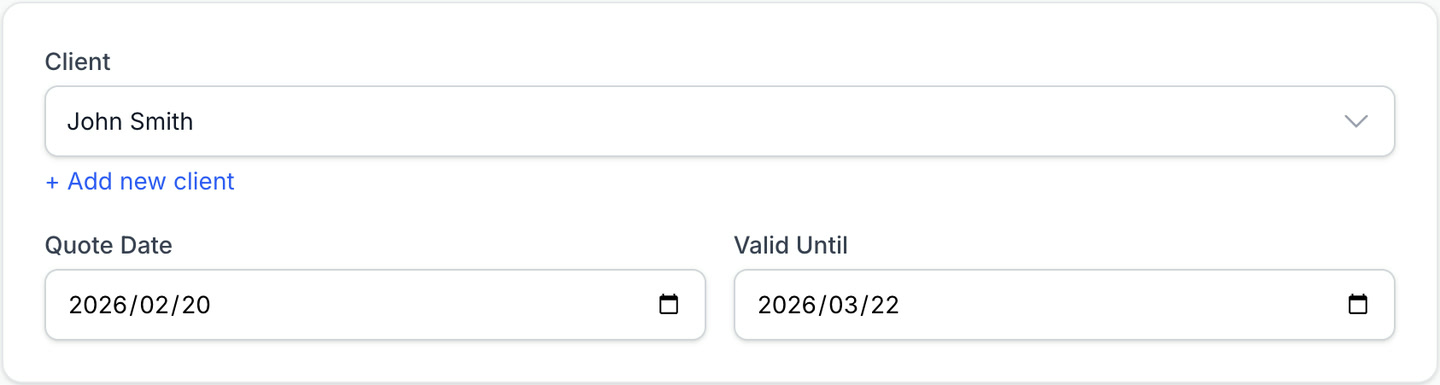
Set the quote date and valid until date
- Quote Date — usually today (auto-filled)
- Valid Until — the date after which the quote expires. Common choices are 14 or 30 days from today.
- 4
Add your line items
Add each item or service you're quoting for. Fill in the description, quantity, and unit price for each. The totals are calculated automatically.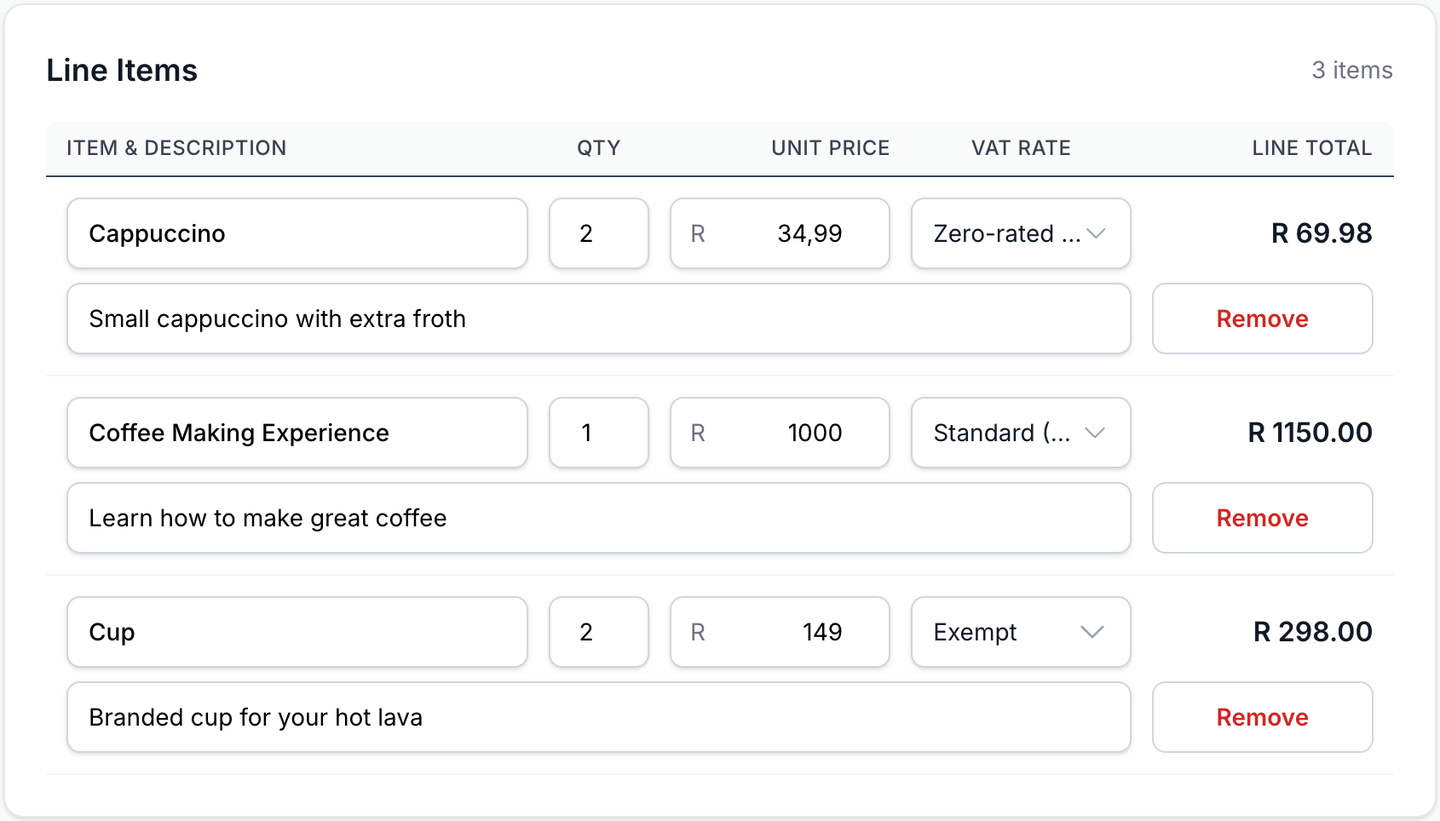
- 5
Add any notes or terms
Use the Notes field to add any conditions, payment terms, or other information for the client.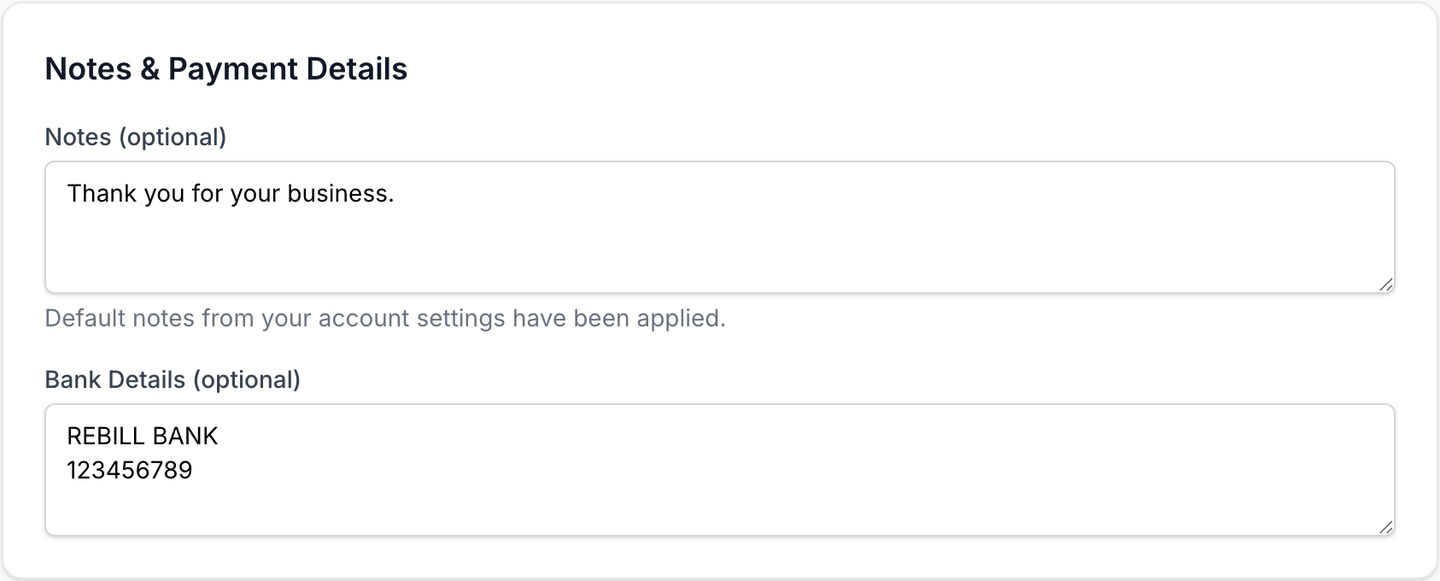
- 6
Save or send
Click "Create Quote" to save it as a draft, then send when you're ready.
Tip
Quotes and invoices use the same form — if you already know how to create an invoice, creating a quote works the same way.