Once your quote is ready, you can email it to your client. They'll get a link to view the quote online where they can accept or decline it — no login required on their end.
- 1
Open the quote
Go to Quotes and click on the draft quote.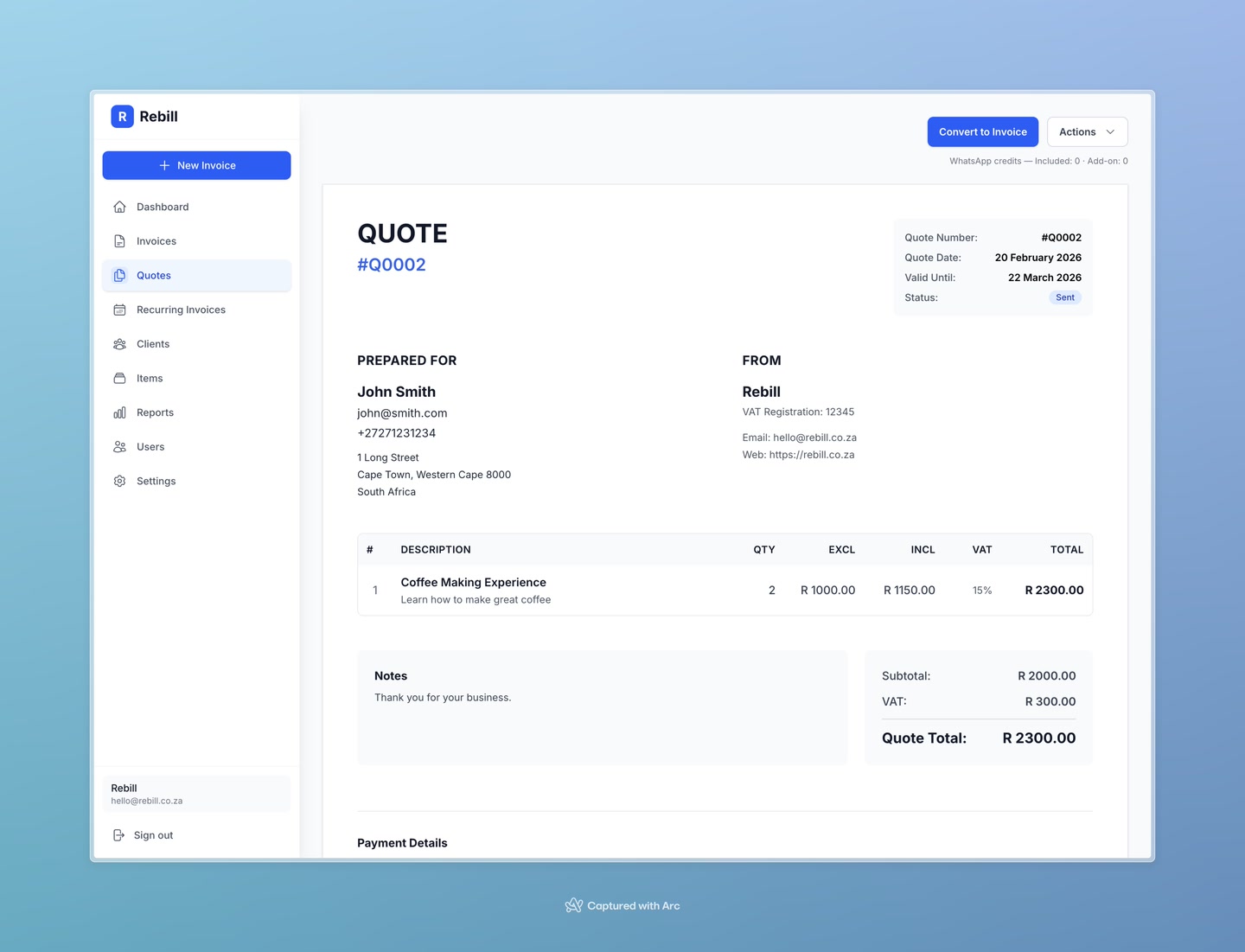
- 2
Click "Email Quote"
Click the blue "Email Quote" button. Confirm the client's email address in the dialog and click "Send Quote".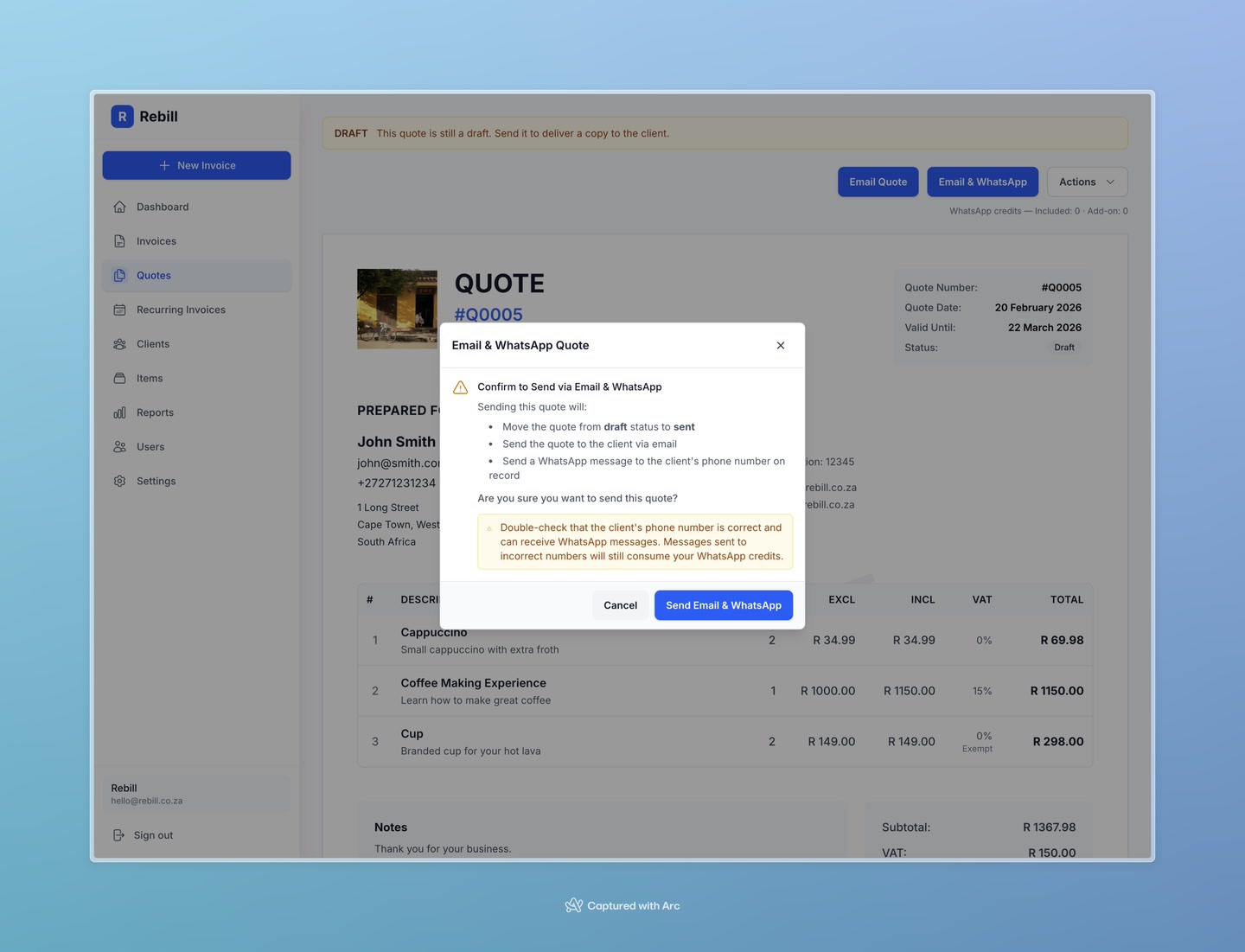
What the client sees
Your client receives an email with a link to view the quote. On the quote page, they'll see the full quote document with two buttons: Accept and Decline.
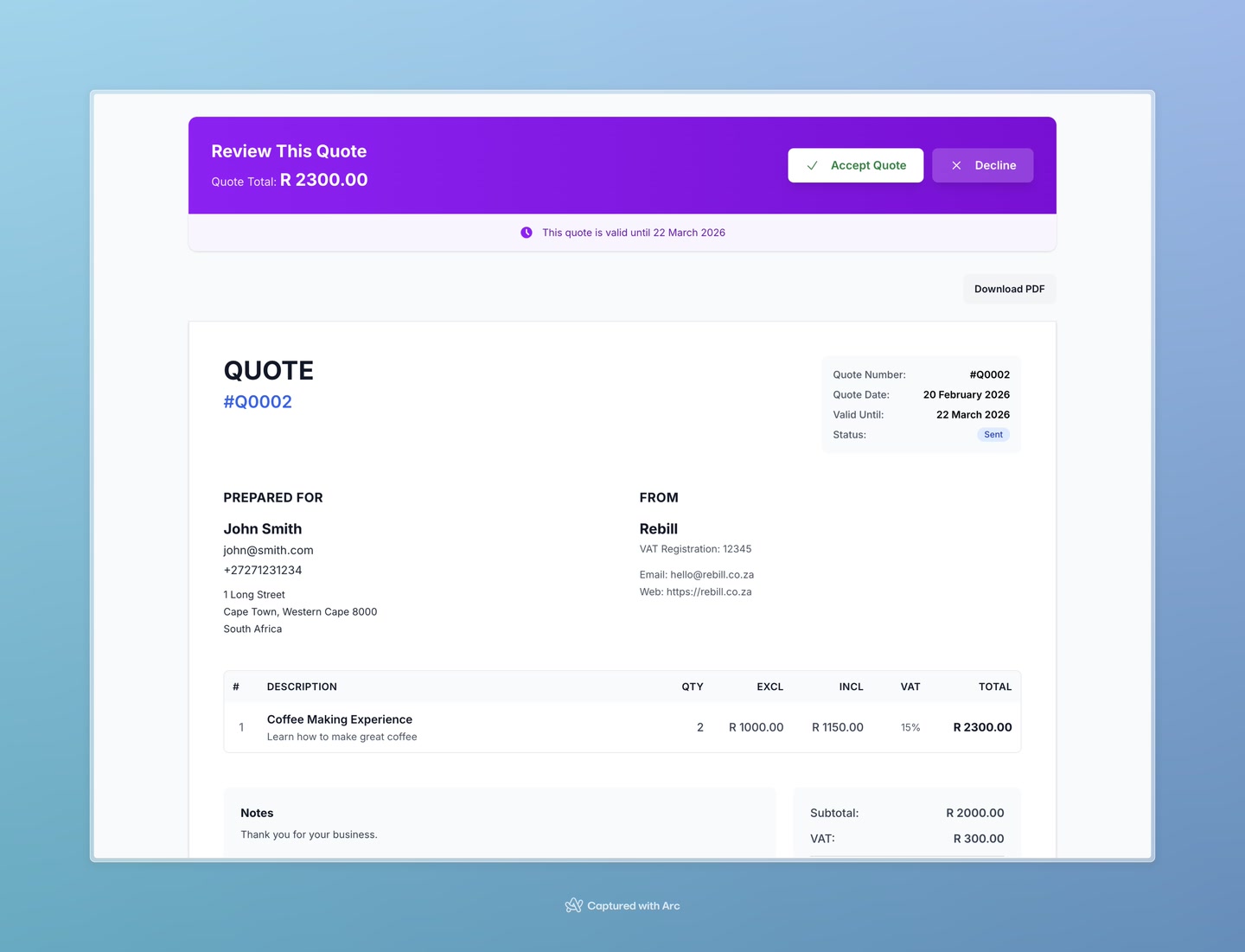
When the client clicks Accept, the quote status changes to Accepted in your Rebill account. You'll also be able to convert it to an invoice straight away.
Tip
You can also share the quote link directly — go to Actions → View Client Quote to get the public URL, then send it via any channel you like.